
VibeFox VWAP MT5
VibeFox VWAP is a real-time VWAP overlay for MetaTrader 5. It calculates the volume-weighted average price from a chosen starting point — the anchor — and draws the result as a cumulative line directly on the price chart. Optional sigma bands fan outward from the anchor, naked (untouched) VWAP lines act as magnetic price targets, and entry signals fire whenever price crosses or touches the VWAP. Everything is controlled through one smooth interactive canvas panel without opening the terminal's input dialog.
VibeFox VWAP — volume-weighted average price from any anchor, with sigma bands and entry signals
VibeFox VWAP is a real-time VWAP overlay for MetaTrader 5. It calculates the volume-weighted average price from a chosen starting point — the anchor — and draws the result as a cumulative line directly on the price chart. Optional sigma bands fan outward from the anchor, naked (untouched) VWAP lines act as magnetic price targets, and entry signals fire whenever price crosses or touches the VWAP. Everything is controlled through one smooth interactive canvas panel without opening the terminal's input dialog.
What VWAP measures
VWAP — Volume-Weighted Average Price — answers a precise question: at what average price have all trades been executed since the anchor? Price above the VWAP line means buyers have held the upper hand since that anchor; price below means sellers have. A return to the VWAP is commonly used as a trend-continuation entry; the sigma bands around it mark the statistical envelope of how far price has strayed from that fair-value average.
This is not a Bollinger Band. A Bollinger Band uses a rolling window of a fixed number of bars. The VWAP window is cumulative: it accumulates volume and price from the anchor forward. As a result the sigma bands do not oscillate symmetrically — they fan out progressively to the right as more data is added, narrowing again only when a strong move resets the average. The further from the anchor, the wider the bands can stretch before a new session resets them.
On forex and CFD instruments where real trade volume is unavailable, tick volume is used as a substitute. The result is labelled approximate but still tracks institutional fair value well on liquid pairs.
Anchor modes — tab ANCHOR
The Source setting on the ANCHOR tab determines how and where the cumulative calculation starts. Three modes are available.
Session
The anchor is placed automatically at the start of each new period. The Session field controls the period: Daily resets at every new trading day, Weekly resets on Monday, Monthly resets on the first bar of the month. One VWAP line is drawn per period, so the chart shows a clean single line that grows from the left edge of each session. Daily VWAP is the most widely tracked level among institutional participants; weekly and monthly VWAP suit swing and positional analysis.
Date
The anchor is fixed to a specific date and time you choose. The Date field opens a calendar picker — click it to select the exact bar where the VWAP calculation should begin. From that bar forward, one cumulative VWAP line extends to the right. Use this mode to anchor from a key event: an earnings release, a breakout bar, a macro announcement, or any moment you want to measure the average from.
Auto
The indicator places anchors automatically based on structural events in price and volume, producing multiple simultaneous VWAP lines. Three trigger types are available and can be combined freely.
Swing — places an anchor at detected swing highs and swing lows. Each structural pivot gets its own VWAP, letting you see the average price since each major turn.
Session — places an anchor at each daily session start, similar to Session mode, but alongside the other Auto anchors rather than alone.
Spike — places an anchor on bars where volume exceeds the average by more than the Spike x threshold. A volume spike often marks institutional activity; anchoring from it shows where the average trade price has been since that burst of activity.
Max lines limits how many of the most recent anchored lines are kept visible at once, ranging from 1 to 50. Older lines are removed as new anchors form, keeping the chart readable.
Track Naked highlights VWAP lines that price has not yet returned to since they were drawn. An untouched VWAP acts as a magnet: statistically, price tends to revert to the fair-value level it has not yet visited. Once price reaches a naked line within the configured tolerance, it is considered worked off and reverts to the standard VWAP color.
Entry points — tab ENTRY
Px Cross entry markers
When Px Cross entry markers is enabled, the indicator places an arrow directly on the price chart whenever the closing price crosses the VWAP line. A cross from below upward places a BUY marker; a cross from above downward places a SELL marker. This mode is available in Session and Date anchor modes where there is exactly one VWAP line to cross. The Buy and Sell color pickers set the arrow colors for each direction, and Size scales the arrow from 1 to 5 to match chart density.
Touch signal
When Touch signal is enabled, the indicator monitors every closed bar to detect when price comes within Near x ATR of the VWAP line, any active sigma band, or — in Auto mode — any naked (untouched) VWAP line. The tolerance is expressed as a multiple of the ATR(14), so it adapts automatically to each symbol's volatility. When a touch is detected, a notification is sent through whichever channels are enabled in Settings. Detection runs only on closed bars, so the signal is never redrawn.
Visual control — tab BANDS
The Bands field controls how many sigma-band pairs are drawn around the VWAP: 0 draws the VWAP line alone, 1 adds one pair at the Mult 1 sigma distance, 2 adds a second pair at Mult 2, and 3 draws all three. The default multipliers are 1.0, 2.0 and 3.0, covering one, two and three standard deviations. The multipliers can be set to any value from 0.1 to 10, allowing tighter or wider envelopes to suit your instrument and strategy.
The VWAP color picker sets the color and transparency of the main VWAP line. The Bands picker controls the sigma-band lines, which are drawn slightly thinner than the main line. The Naked picker sets the color of untouched lines in Auto mode, making them visually distinct from worked-off ones. Width sets the VWAP line thickness in pixels (1–10), and Style selects the dash pattern: Solid, Dash, Dot, DashDot or DashDotDot.
In Auto mode the BANDS tab is greyed out — because multiple independent lines are active simultaneously, per-line sigma bands would clutter the chart. The Naked color remains relevant in Auto mode and is always accessible from the color row on the Bands tab when bands are re-enabled in a single-line mode.
The BANDS tab strip can also be toggled directly with a right-click: right-clicking the Bands tab turns bands on or off without switching away from the currently active tab.
Interactive on-chart panel
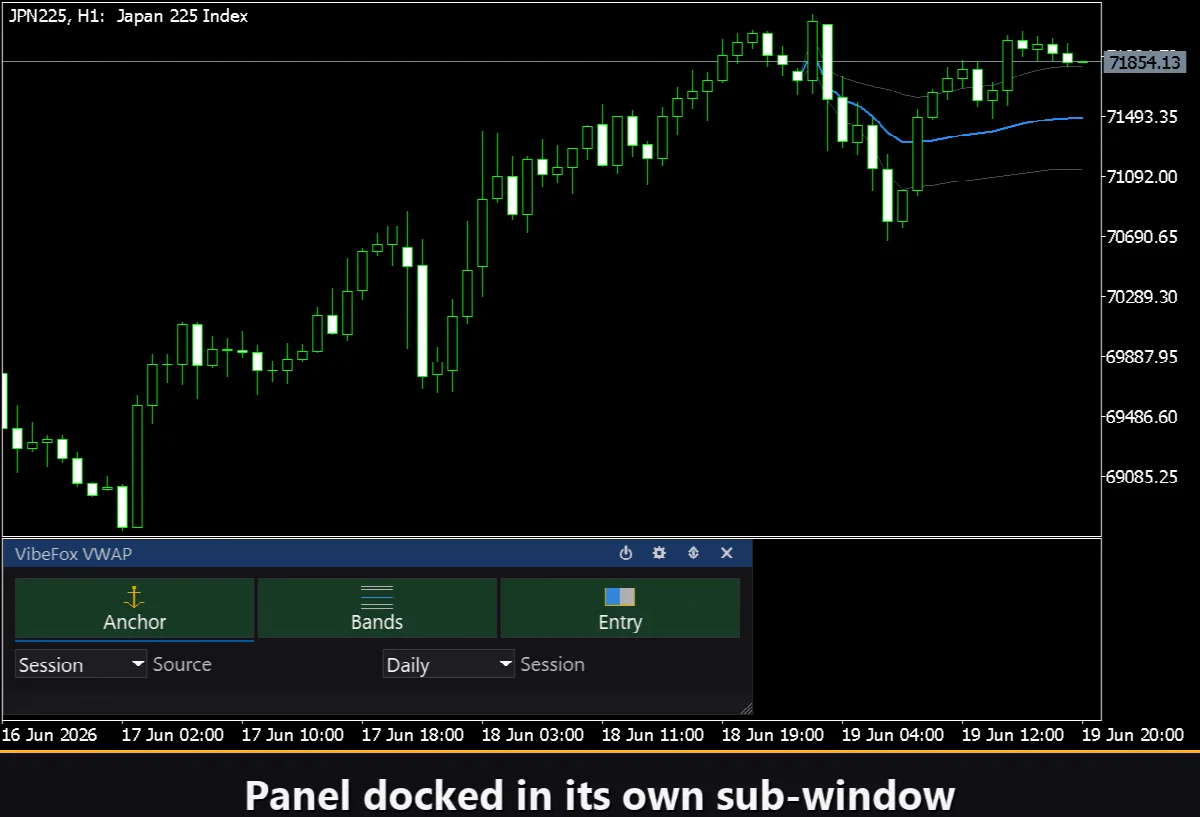
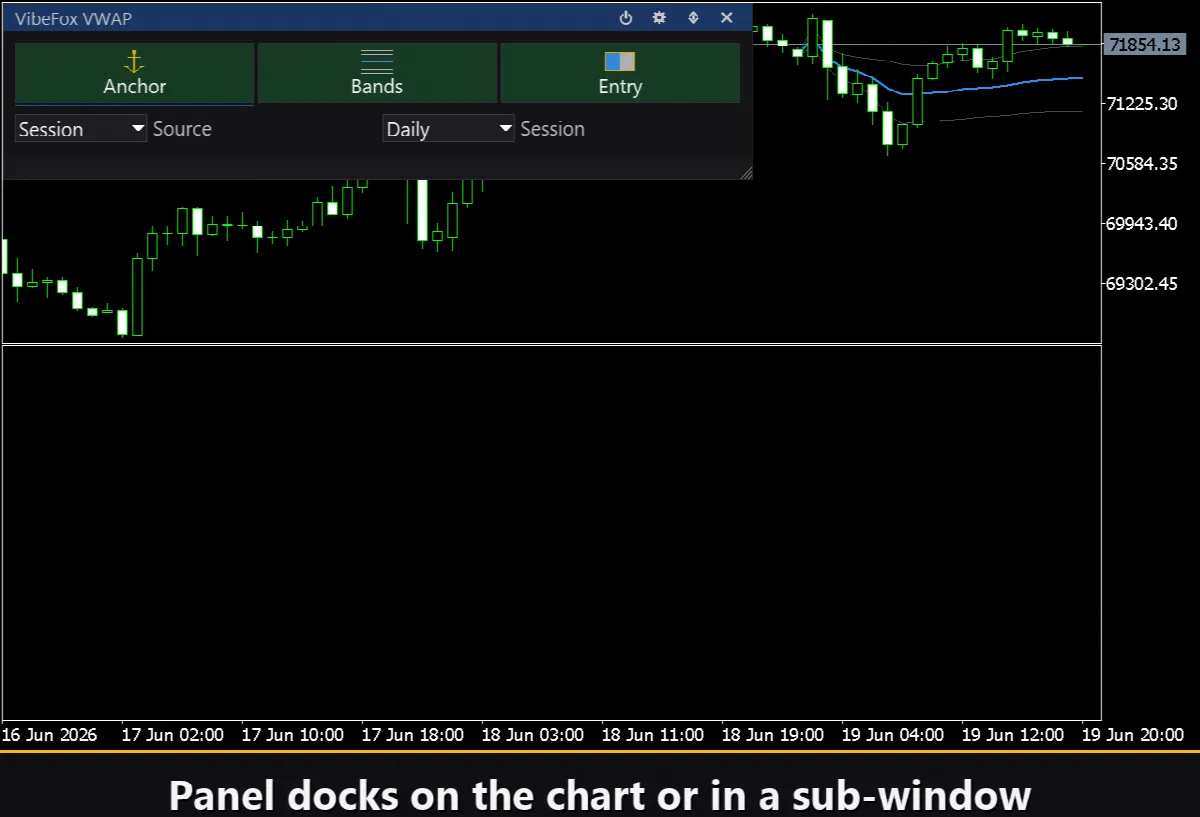
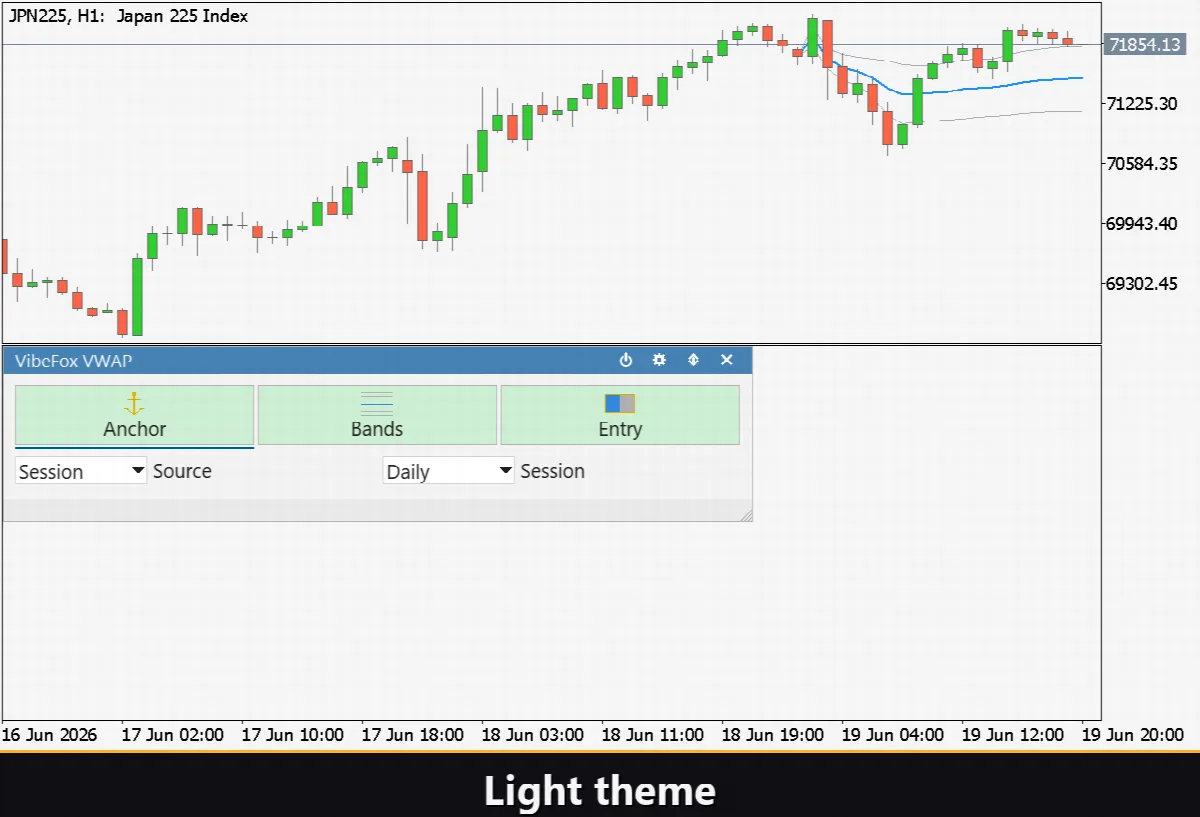
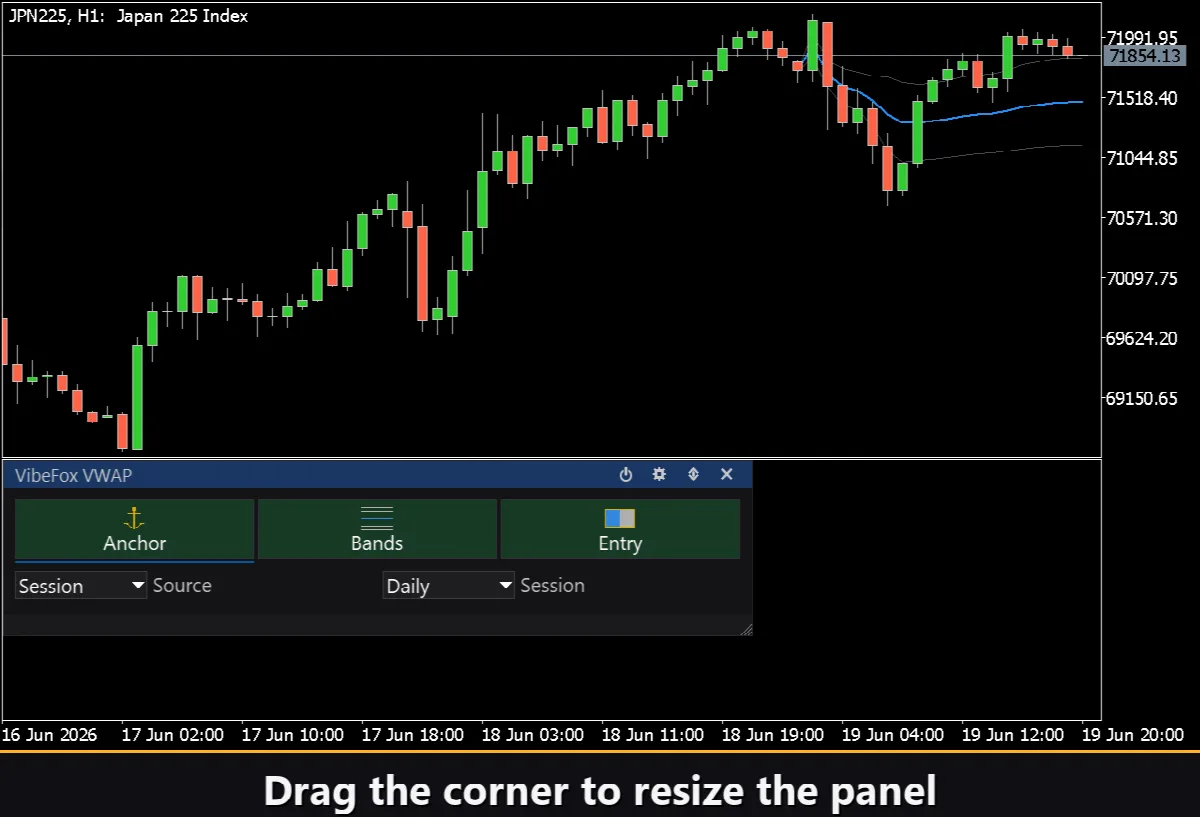
The entire interface is a smooth canvas panel designed for fast mouse interaction. The three tabs — ANCHOR, BANDS and ENTRY — hold all controls for their respective sections, and the panel header contains the management icons.
Power — turns the drawing of all VWAP lines and signals on and off without removing the indicator from the chart.
Settings (gear) — opens and closes the settings section.
Subwindow / Chart (arrows) — moves the panel between the indicator's separate subwindow and the main price chart.
Close (cross) — removes the indicator from the chart.
Resizable — drag the bottom-right corner to scale the panel to any size.
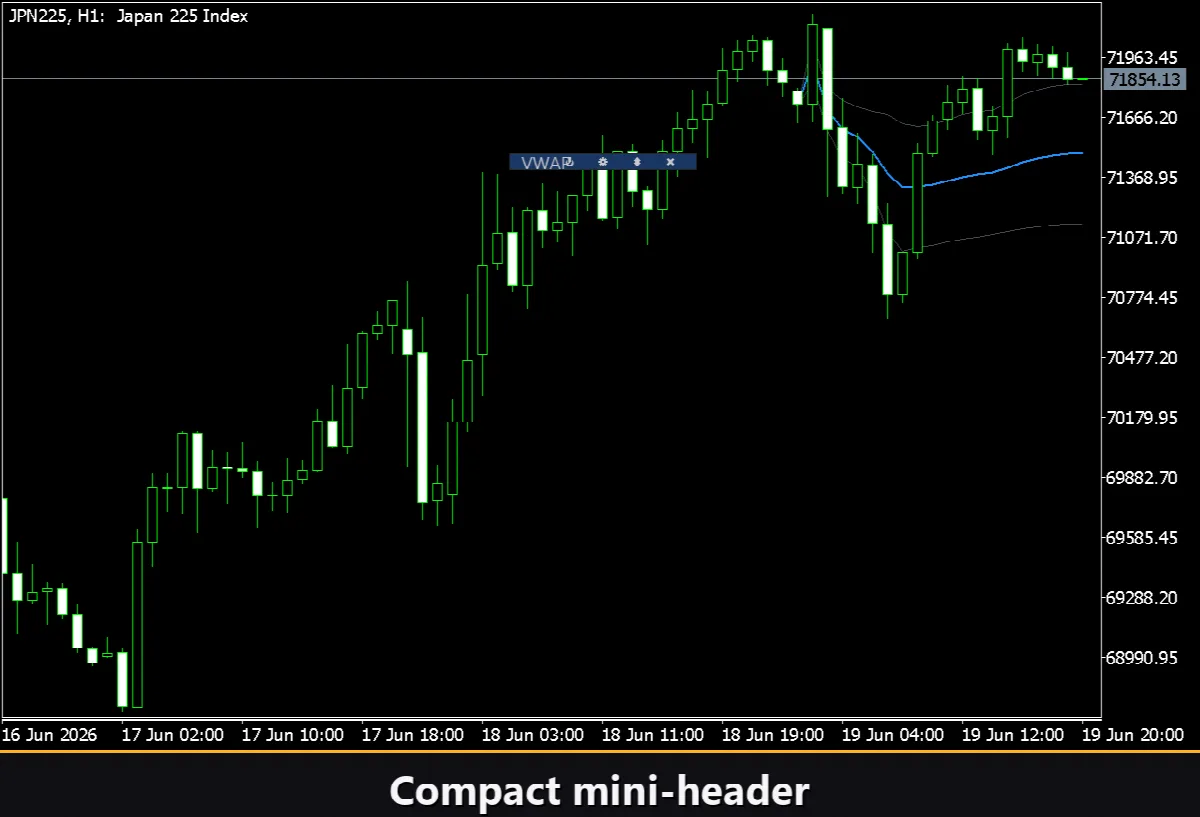
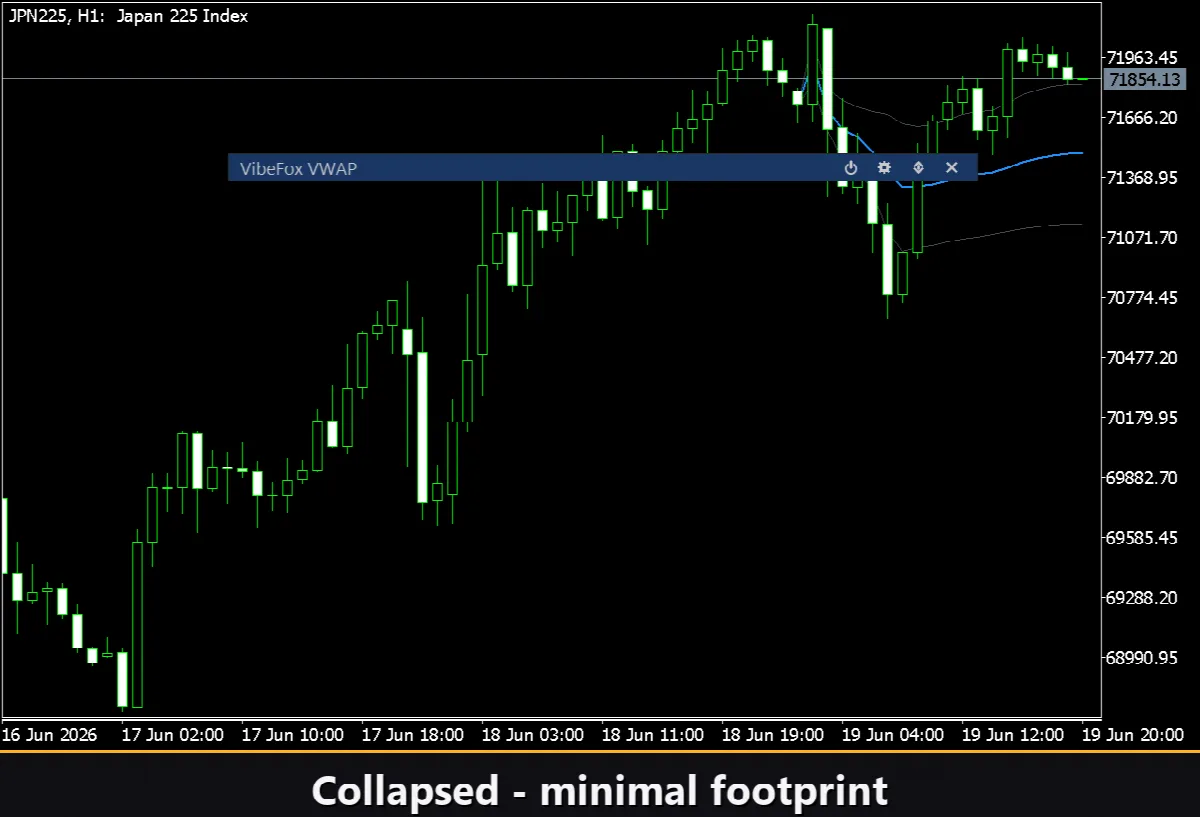
Collapsible — double-click the header to collapse the panel to a compact strip.
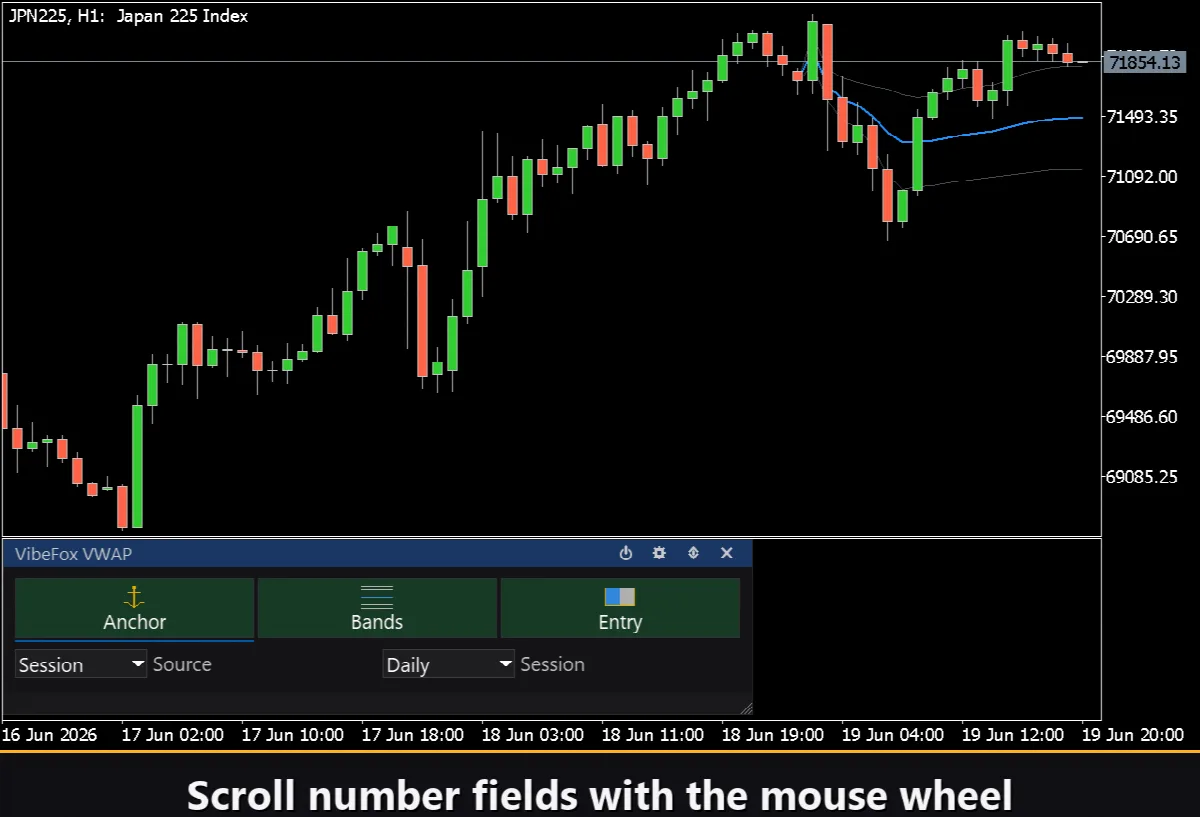
Mouse wheel — hover over any numeric field and scroll the wheel to change the value without opening the keyboard.
Settings and personalisation
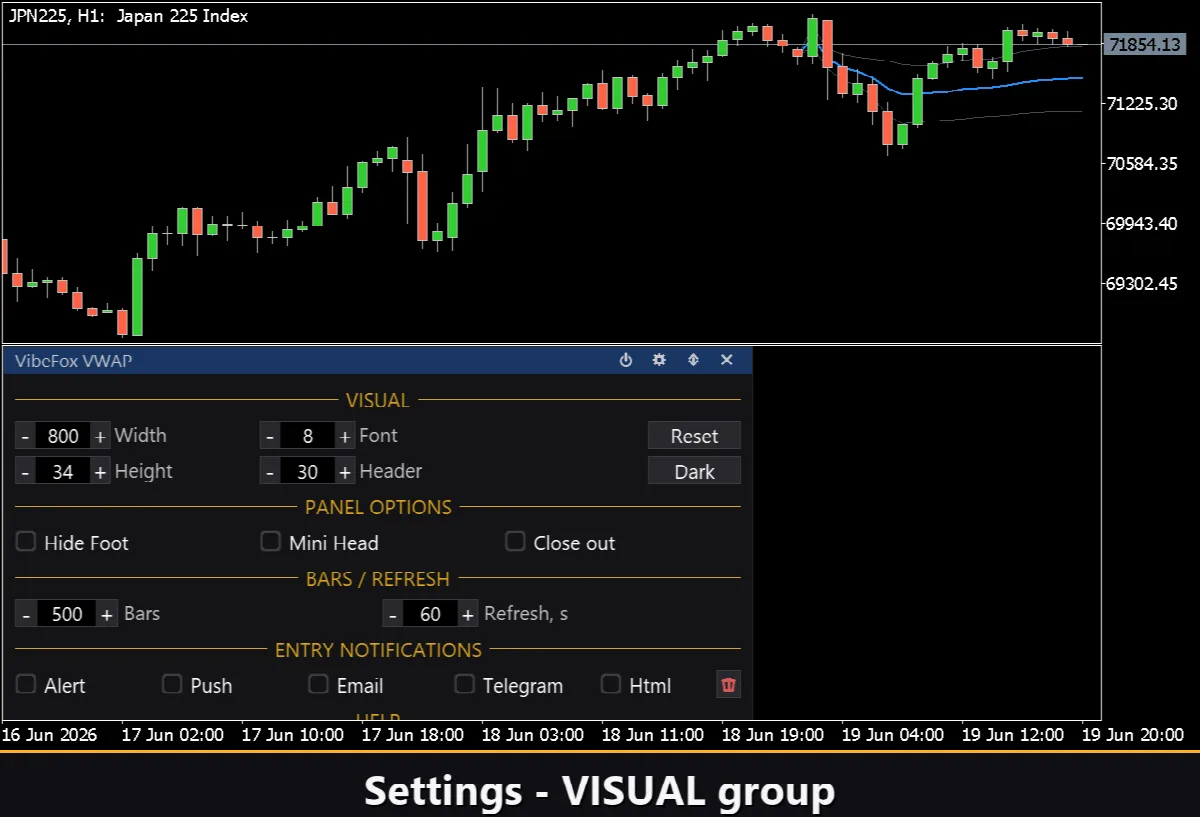
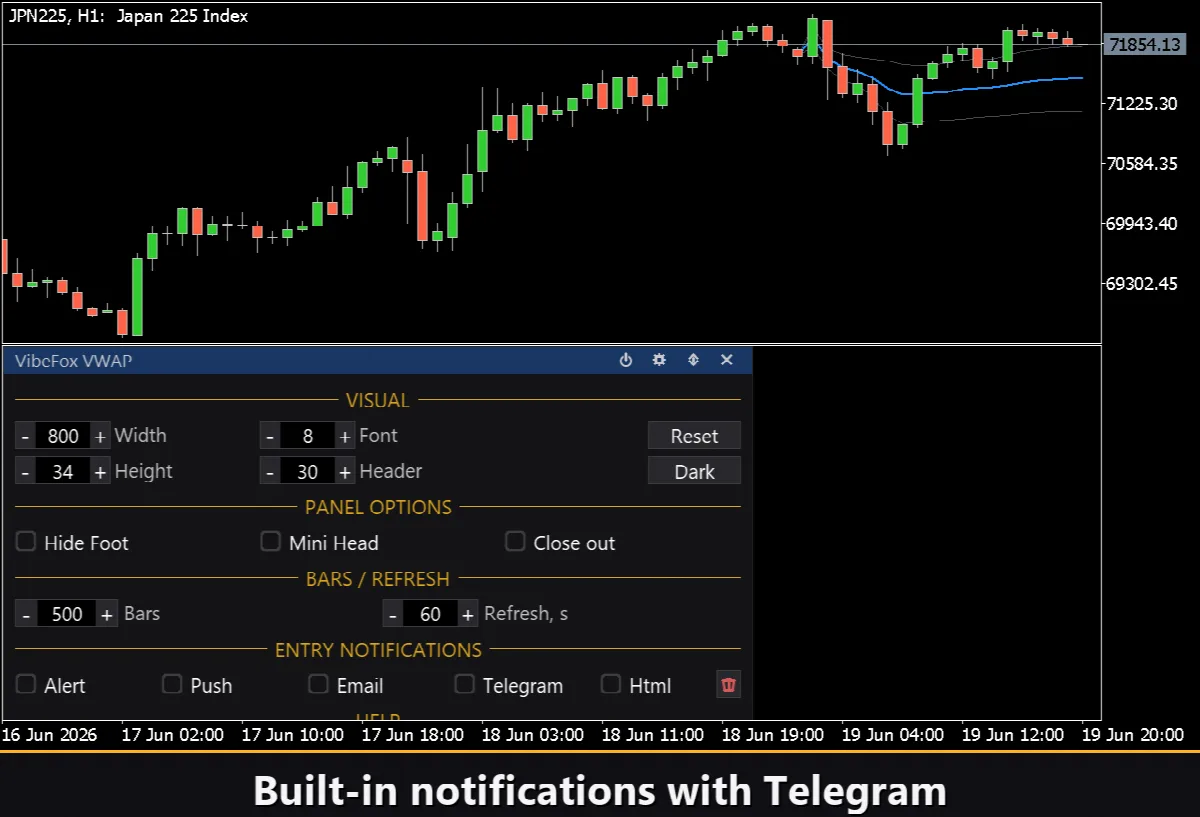
The Settings button opens a section where the panel is fitted to your workspace: light, dark or automatic Theme, configurable panel width, header size, row height and font size. Extra touches let you hide the footer strip via Hide Footer, show a compact header when collapsed with Mini Header, and auto-collapse the panel on a click outside it. The Settings section also exposes the Bars lookback (how many trailing bars of VWAP and bands to draw) and an optional auto-refresh interval in seconds. Almost all parameters change live on the panel — the Inputs tab only sets starting values. You can run several independent copies on the same chart by giving each a unique Instance number, watching different anchor modes or symbols side by side.
Entry notifications
You do not need to watch the chart waiting for a signal. Each entry can be delivered through several notification channels that are toggled independently in the Settings section.
Alert — a pop-up message inside the terminal.
Push — a mobile notification to the MetaTrader app on your phone.
Email — a message sent through the terminal's mail settings.
Telegram — the alert text together with a chart screenshot, sent straight to your Telegram chat.
Enable only the channels you need and you will be notified the moment price touches the VWAP, a sigma band, or a naked line on the symbol and timeframe you are monitoring.
Visual history — Html report
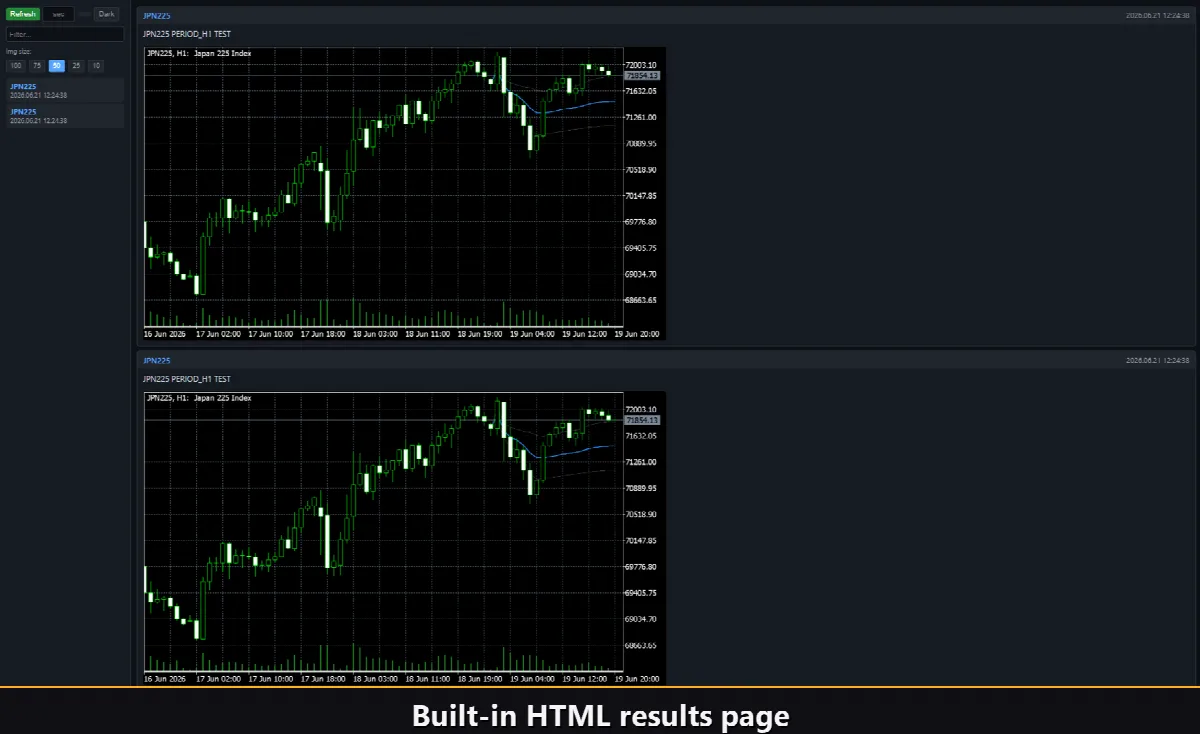
Enable the Html channel and every touch or cross signal is saved to an HTML report together with a screenshot of the chart at the moment it fired. The report is stored in the terminal's Files folder, in the VibeFox_VWAP sub-directory, and opens in any browser — giving you a complete visual log of every entry the indicator found. The trash button in Settings clears the report and its screenshots in one click whenever you want to start fresh.
Telegram Alerts
Signals can also be delivered straight to your Telegram chat — the alert text together with a screenshot of the chart at the moment of detection. Turn on the Telegram channel and enter your bot token and chat id in the inputs.
Delivery rides on the HTML report: each new signal is written into the report, and the report — opened in a browser — forwards it to your Telegram chat on its own. For this reason, enabling Telegram automatically keeps the Html report on, and the two channels work together.
Built-in multilingual help
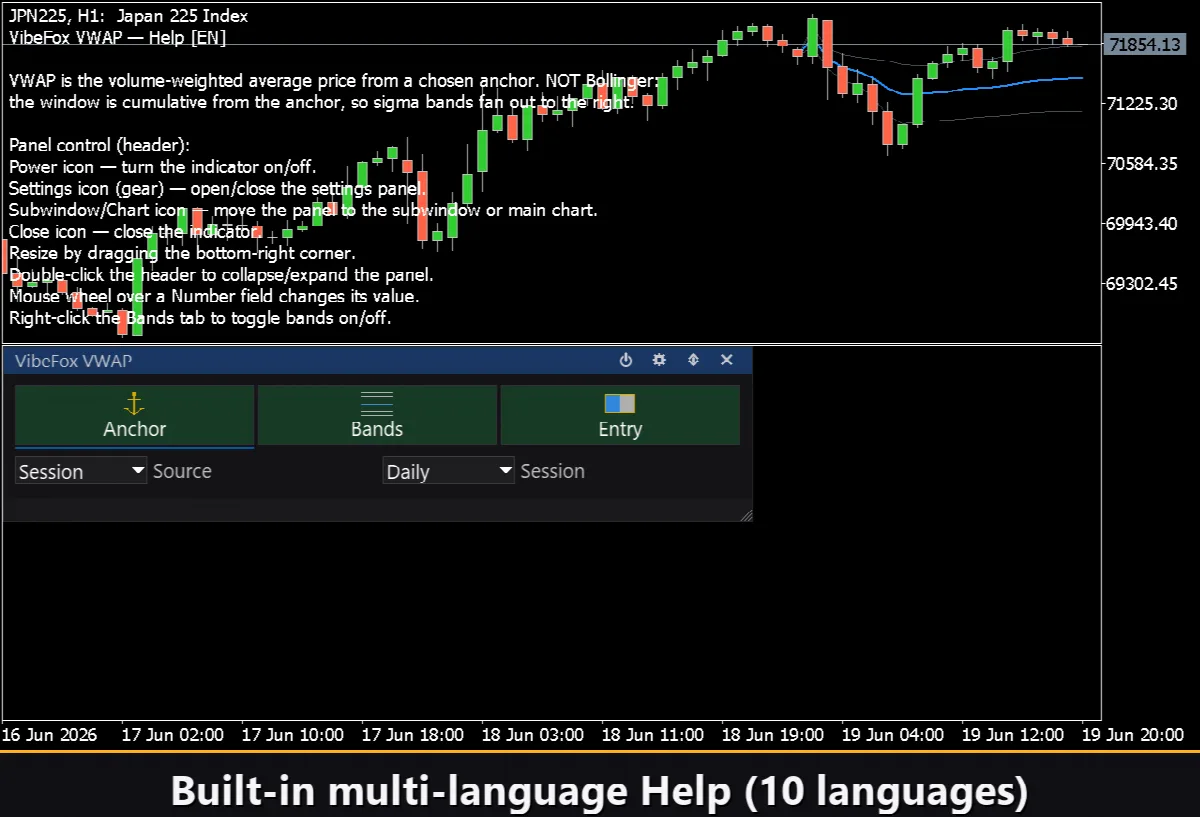
A full help page is built into the panel and available in 10 languages, so every control is explained right where you use it.