
VibeFox Sessions MT5
VibeFox Sessions — a trading session indicator for New York, London, and Tokyo for MetaTrader 5. All three sessions simultaneously on a single chart, customizable colors with transparency, flexible control of opening and closing times directly from the panel. Supports notifications via Push, Alert, Email, and Telegram. Automatically converts UTC to broker time, displays local and server time. Settings are saved between launches; multiple copies with different parameters can be run on a single chart.
VibeFox Sessions — Trading Session Zones for MetaTrader 5
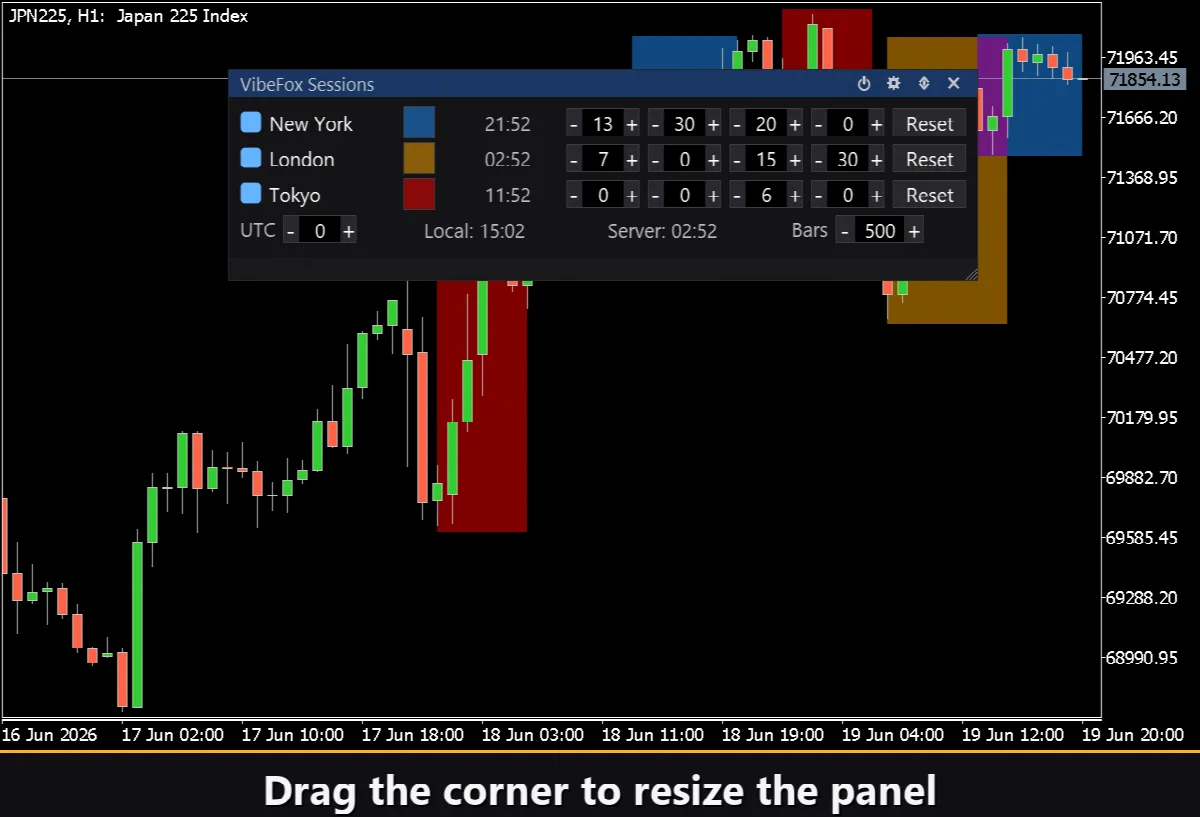
VibeFox Sessions draws the three major Forex trading sessions — US (New York), Europe (London) and Asia (Tokyo) — directly on your chart as clean, colored zones. Instead of guessing when liquidity arrives, you see exactly when each market is active, where sessions overlap and how price behaves inside every trading window. Everything is controlled from a modern, mouse-driven panel that lives right on the chart.
Three Major Sessions on the Chart
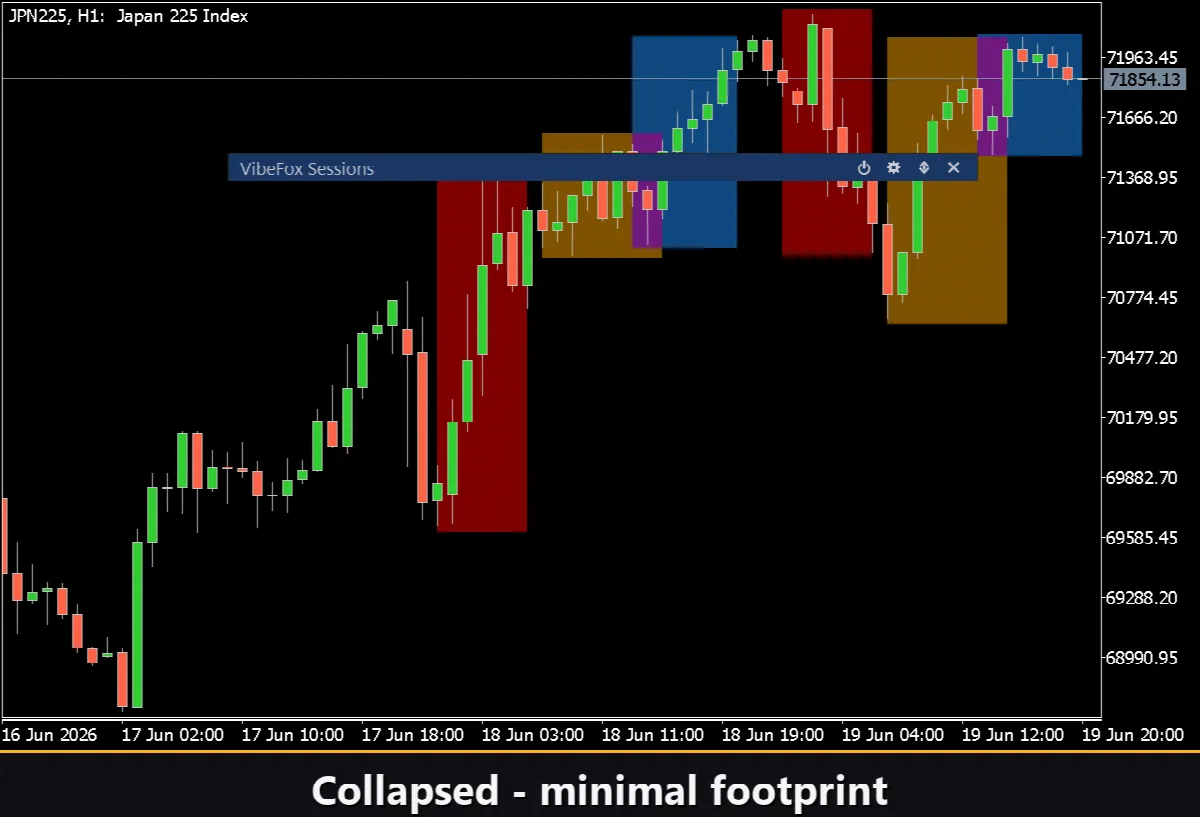
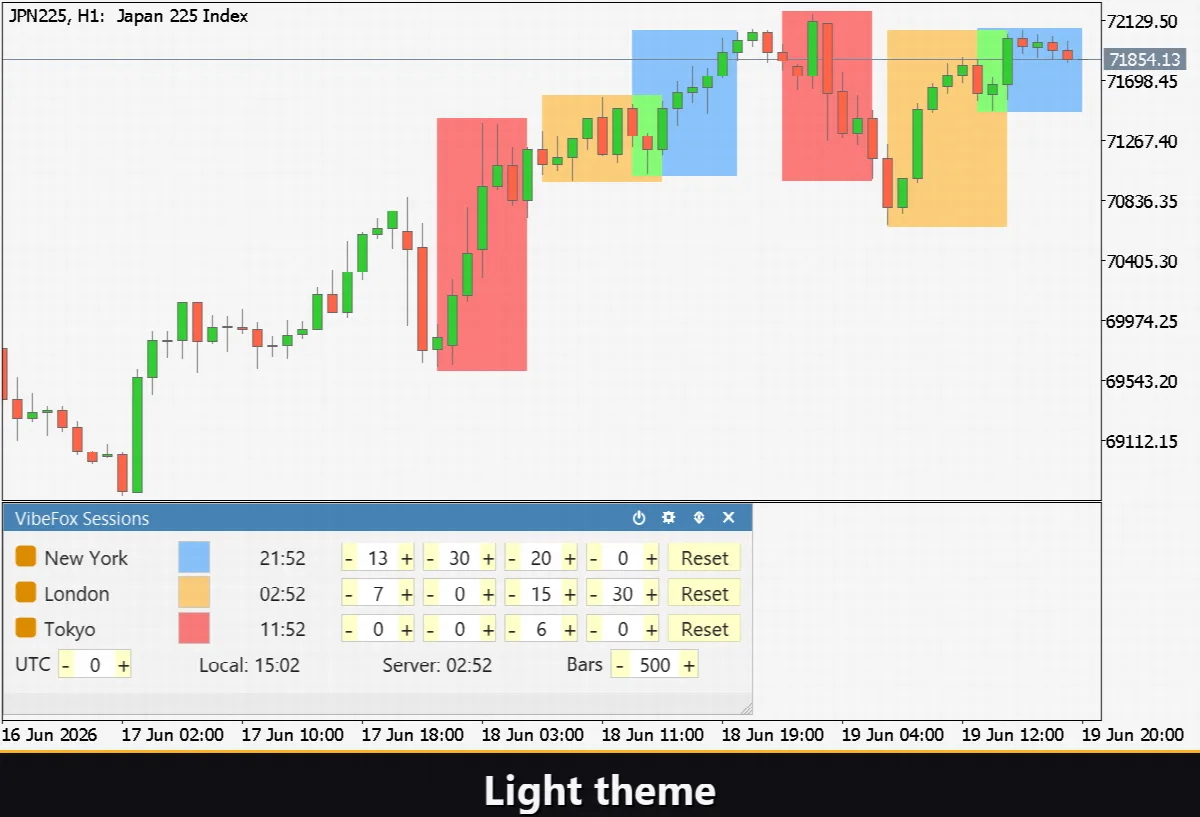
The indicator shades the active hours of each session as a vertical zone behind price, so the rhythm of the trading day becomes visible at a glance.
US Session (New York) — the American trading window.
Europe Session (London) — the European trading window and the most liquid part of the day.
Asia Session (Tokyo) — the Asian trading window that opens the day.
Because each session is drawn independently, the points where two sessions run at the same time — such as the London and New York overlap — stand out immediately as layered zones, helping you focus on the hours when the market is most active.
Fully Configurable Session Times
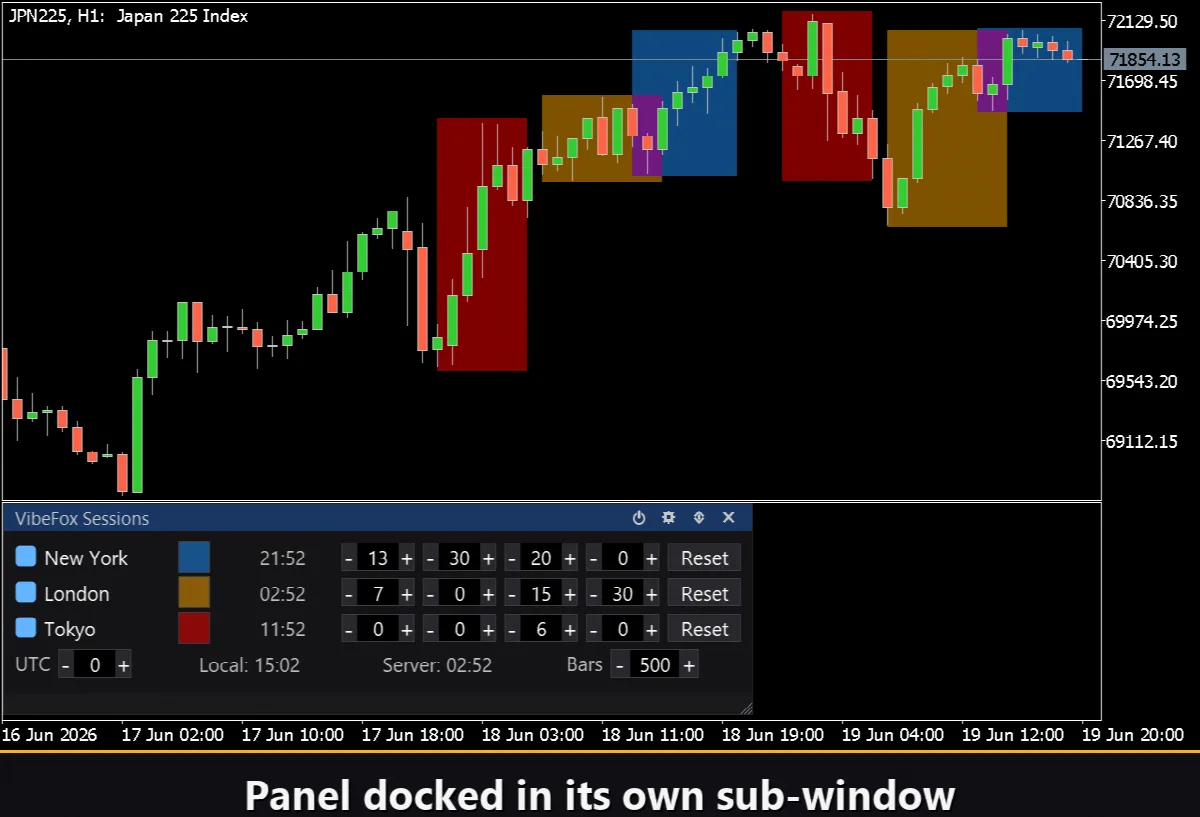
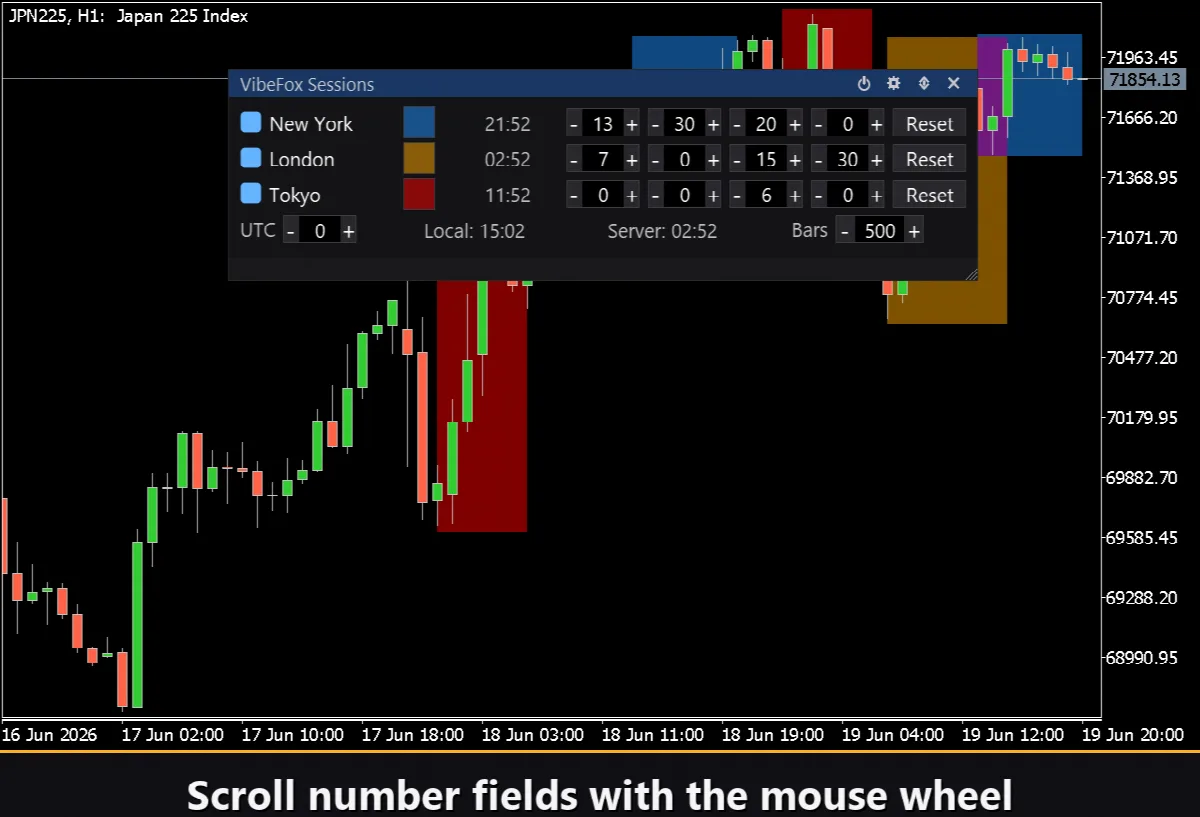
Every session keeps its own independent settings, edited right inside the panel row.
Show on chart turns each session zone on or off individually, so you can display only the windows that matter to you.
Zone color and transparency let you give each session a personal color and set how strongly it tints the chart, keeping price perfectly readable.
Open and Close time — you set the precise Open H/M and Close H/M for every session in hours and minutes (UTC), adapting the zones to any market definition you prefer.
Reset returns any session to its default opening and closing times with a single click.
Time Awareness Built In
Trading sessions only make sense when the clocks line up, so the panel keeps time front and center.
Each session row shows the current city time for its market, so you instantly know whether New York, London or Tokyo is open right now.
A Broker-to-UTC offset aligns your broker's server clock with UTC, which is the key that makes the session zones land on the correct bars regardless of which broker you use.
The footer also displays your Local computer time and the broker Server time side by side, plus a Bars value that sets how deep into history the session zones are calculated and drawn.
Session-Start Notifications
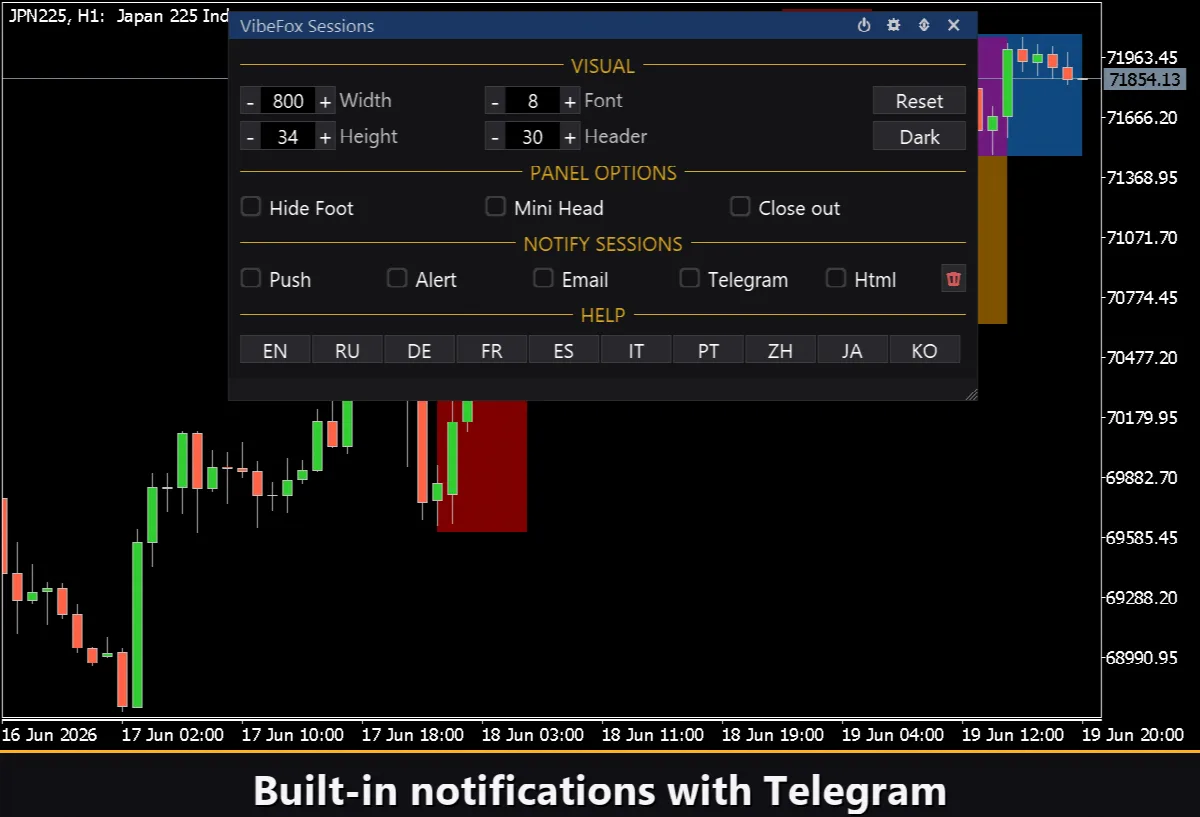
VibeFox Sessions can alert you the moment a trading session begins, so you never miss the open of the window you trade.
Notifications are delivered through several channels that you enable independently.
Alert — pop-up message inside the terminal.
Push — mobile notification to the MetaTrader 5 app on your phone.
Email — message sent through the terminal mail settings.
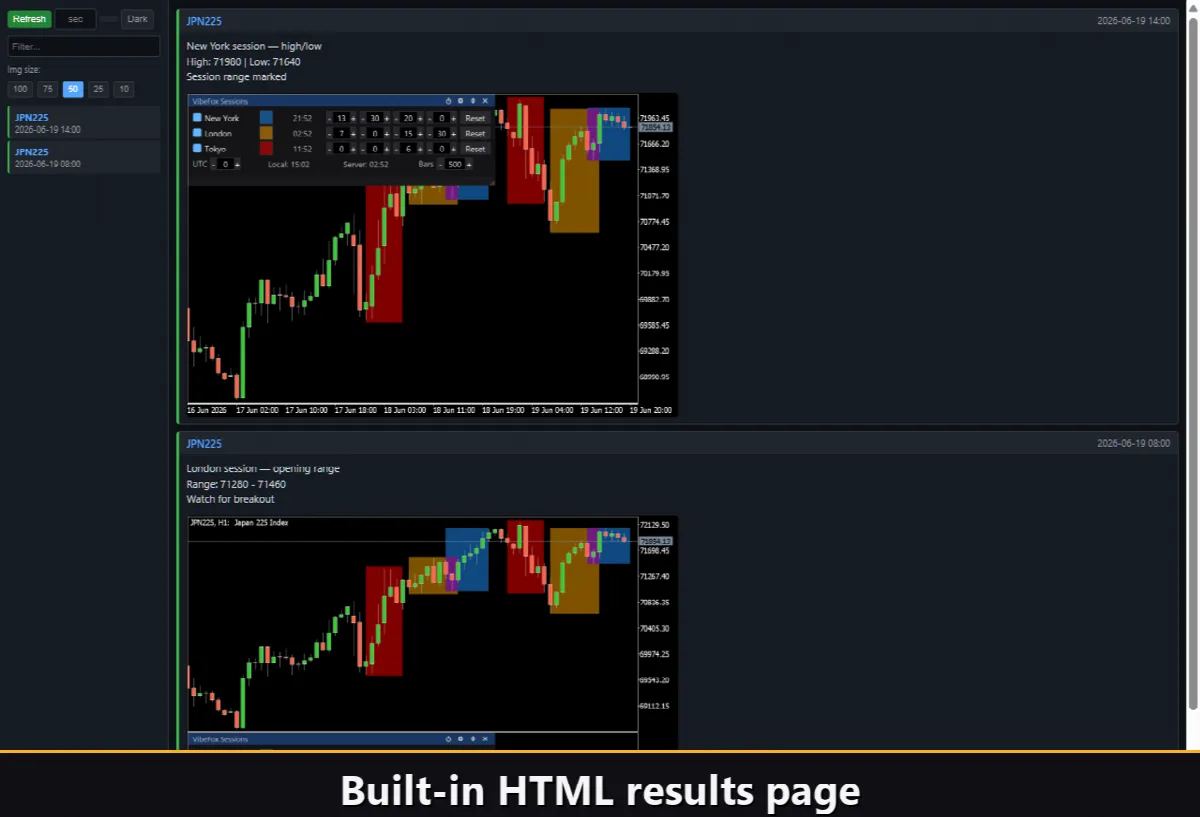
Html — every session-start event is saved into an HTML report with a chart screenshot, opened in any browser.
Telegram — the alert text together with a chart screenshot, sent straight to your Telegram chat.
Telegram Alerts
Session-start signals can also be delivered straight to your Telegram chat — the alert text together with a screenshot of the chart at the moment of the session start. Turn on the Telegram channel and enter your bot token and chat id in the inputs.
Delivery rides on the HTML report: each new event is written into the report, and the report — opened in a browser — forwards it to your Telegram chat on its own. For this reason, enabling Telegram automatically keeps the Html report on, and the two channels work together.
Interactive On-Chart Panel
The whole interface is a smooth, canvas-based panel built for fast, mouse-driven control.
Power icon — turn session drawing on or off without removing the indicator.
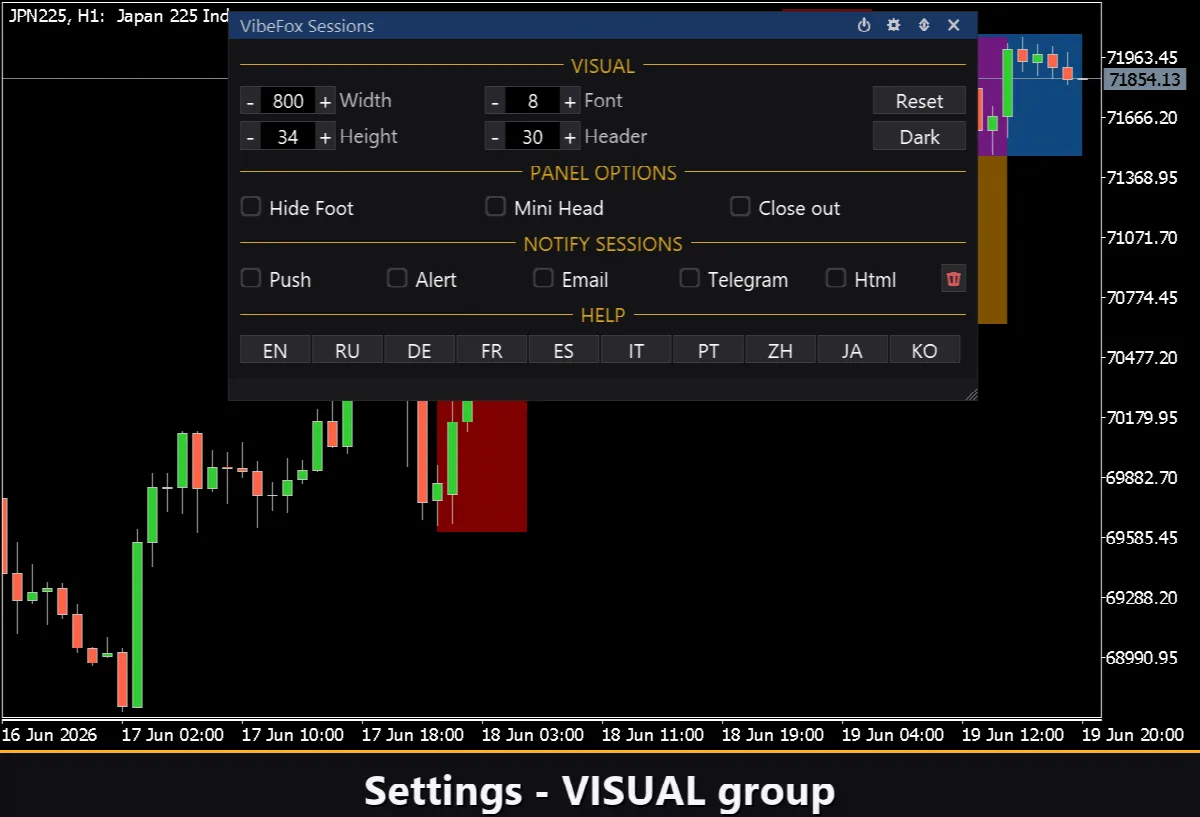
Settings icon — open or close the settings section right inside the panel.
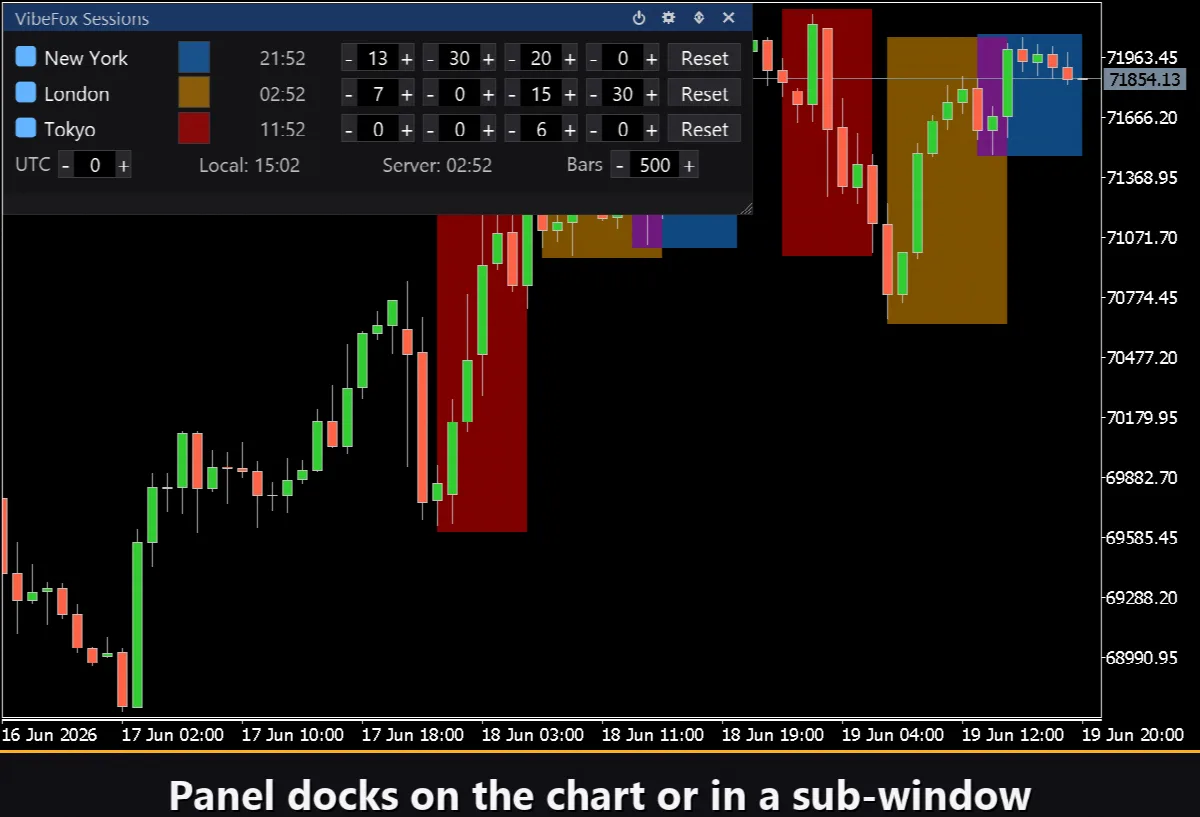
Subwindow icon — move the panel between a separate subwindow and the main chart.
Resizable — drag the lower-right corner to scale the panel to any size.
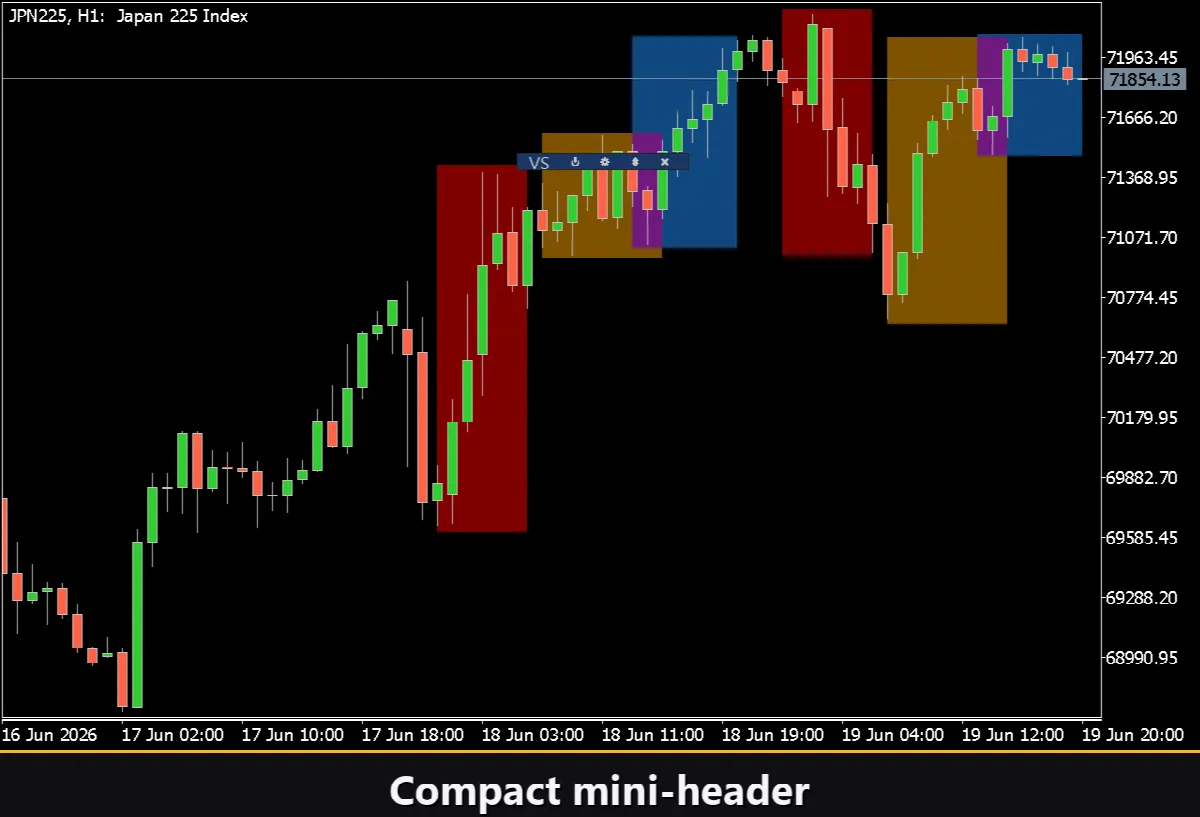
Collapsible — double-click the header to fold the panel into a compact bar.
Mouse wheel — hover any number field and scroll to change its value quickly.
Personalization
You adapt the look and behavior of the panel to your workspace.
Choose a light, dark or automatic Theme, and fine-tune the panel Width, Header size, Row height and Font size to fit your screen. Options such as Hide footer, Mini header on collapse and Close outside let you streamline the layout exactly the way you like it.
Using a unique Instance number you can run several independent copies on the same chart, for example to compare different session definitions at once.
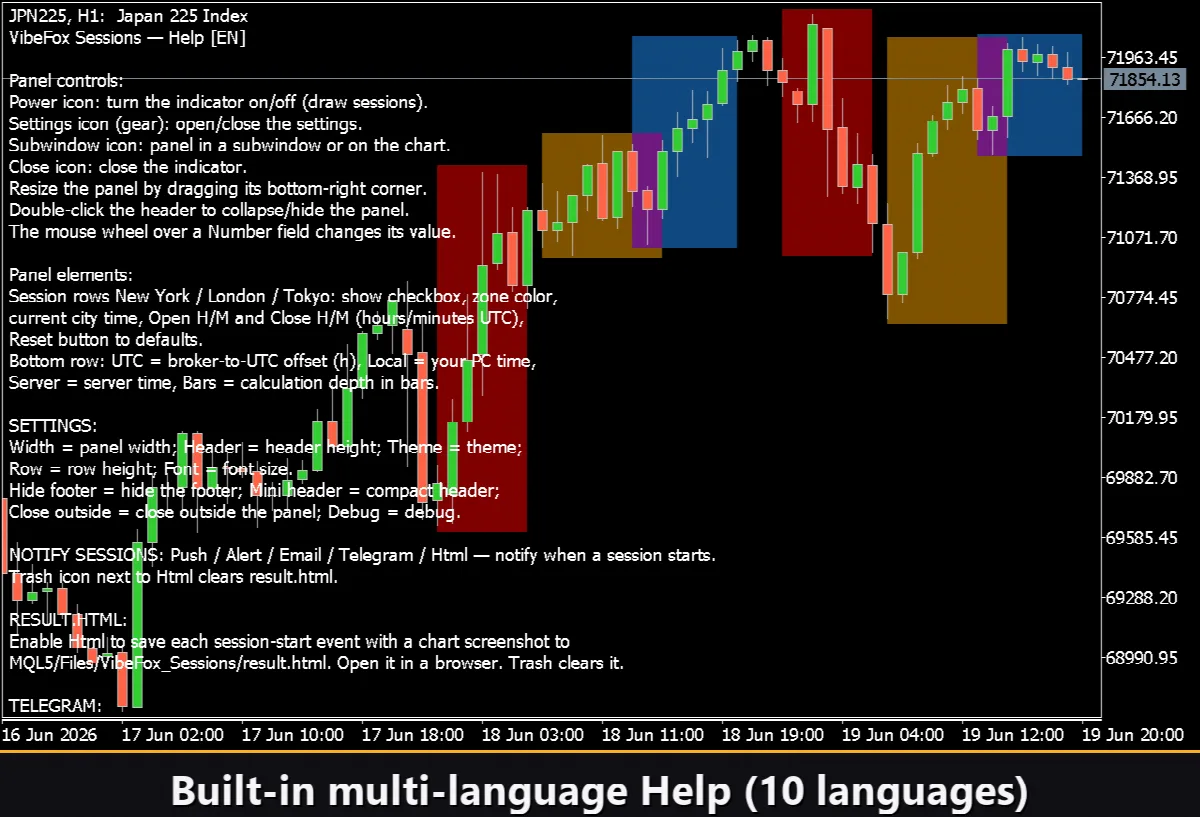
Built-in Multilingual Help
A complete help page is built into the panel and available in several languages, so every control and field is explained right where you use it.