

VibeFox Range Filter MT5
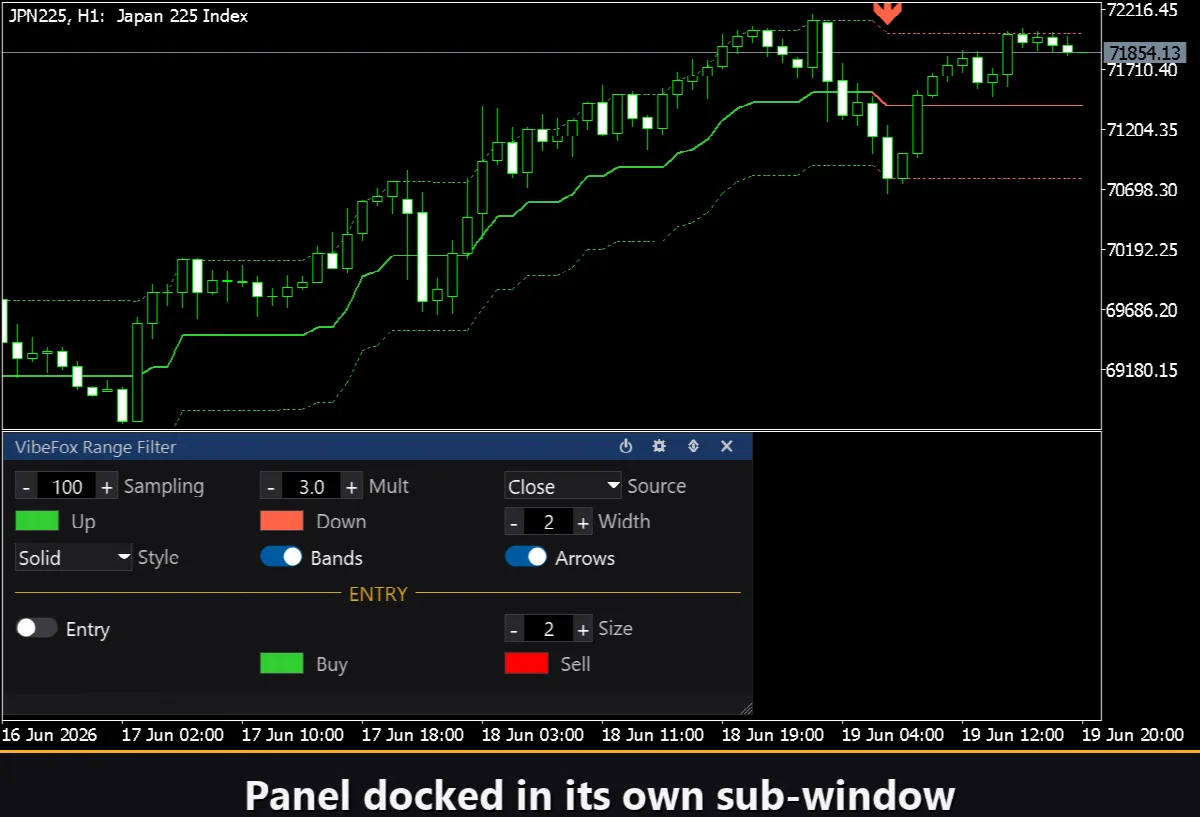
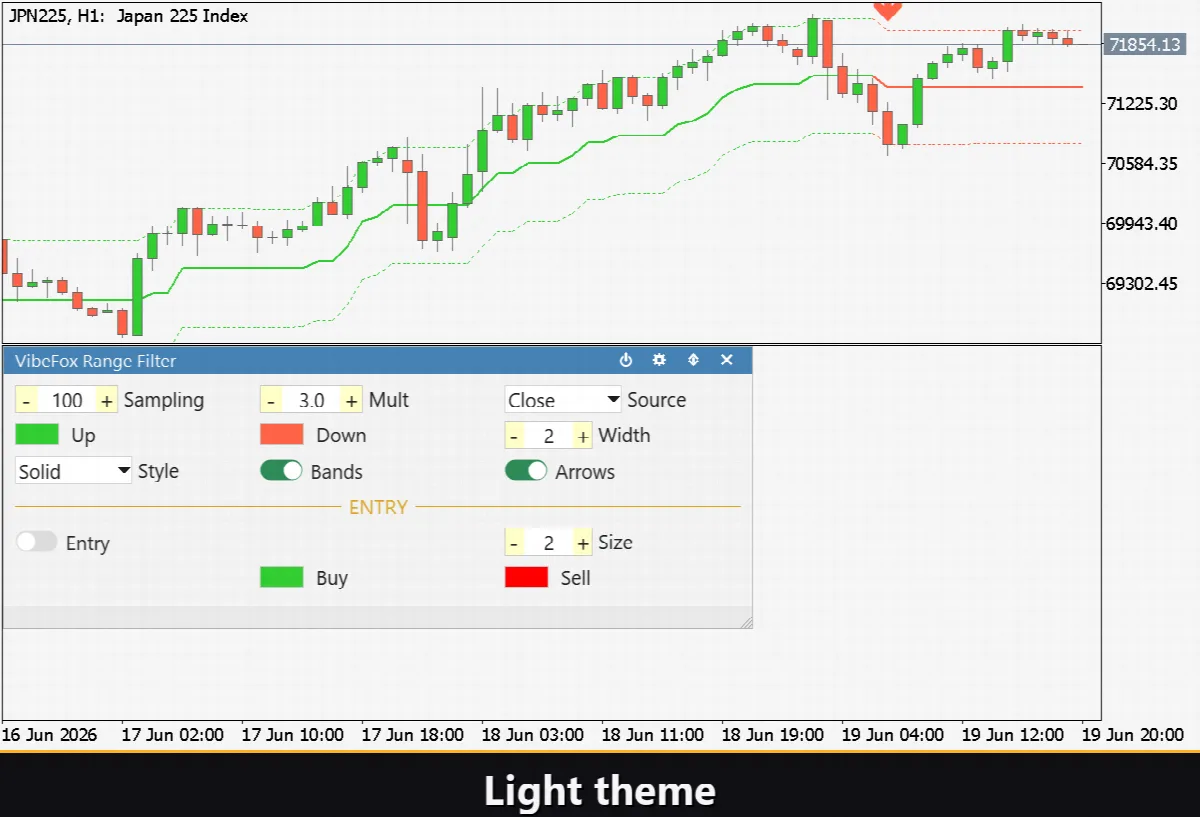
VibeFox Range Filter is a real-time trend-following overlay for MetaTrader 5. It draws a smoothed range filter line directly on the price chart, surrounded by upper and lower bands, and marks each filter break with a colored arrow and an entry signal the moment it forms. Instead of guessing when a trend has shifted, you see the filter line change direction and the entry arrow appear in the same bar.
VibeFox Range Filter — smoothed range filter overlay with entry signals
VibeFox Range Filter is a real-time trend-following overlay for MetaTrader 5. It draws a smoothed range filter line directly on the price chart, surrounded by upper and lower bands, and marks each filter break with a colored arrow and an entry signal the moment it forms. Instead of guessing when a trend has shifted, you see the filter line change direction and the entry arrow appear in the same bar.
How the Range Filter works
The indicator answers one question: has the price decisively crossed the filter line, or is it still contained inside the range? It does this in two steps.
Smoothed range
First, the indicator computes a smoothed average true range using an exponential moving average over the Sampling Period bars, then scales it by the Range Multiplier. This gives a single value — the smoothed range — that adapts to current volatility. A larger multiplier widens the range and produces fewer, stronger signals; a smaller multiplier narrows it and reacts faster.
Filter line and bands
The filter line is anchored to the price through a ratchet mechanism: it only moves up when the source price rises by more than the smoothed range above the previous filter value, and only moves down when the price drops more than the smoothed range below it. In between, the line holds still. This makes it immune to small fluctuations and noise. When the filter moves upward it is drawn in the Up Color; when it moves downward it switches to the Down Color. The optional Bands add a channel above and below the filter line equal to one smoothed range, making the permitted fluctuation zone visible at a glance.
Entry points
Filter break
A filter break is the primary signal. It occurs on the first bar where the filter line changes direction: from downward to upward the indicator places a BUY arrow below the bar; from upward to downward it places a SELL arrow above the bar. Break arrows appear on every direction change regardless of the Entry toggle. The Entry toggle in the panel turns the separate entry marker (the filled colored dot or arrow used for notifications) on or off, so you can keep the visual break arrows while suppressing the notification markers, or enable both together for full signal tracking.
Visual appearance
The filter line color switches automatically between Up Color and Down Color on every direction change, giving an instant read of the current trend state. The Line Width sets the thickness of the filter and band lines in pixels. The Style control lets you choose between Solid, Dash, Dot, DashDot, or DashDotDot for the line style. Buy entry markers are colored with Buy Marker Color and Sell markers with Sell Marker Color; the Marker Size scales them from 1 to 5.
Interactive on-chart panel
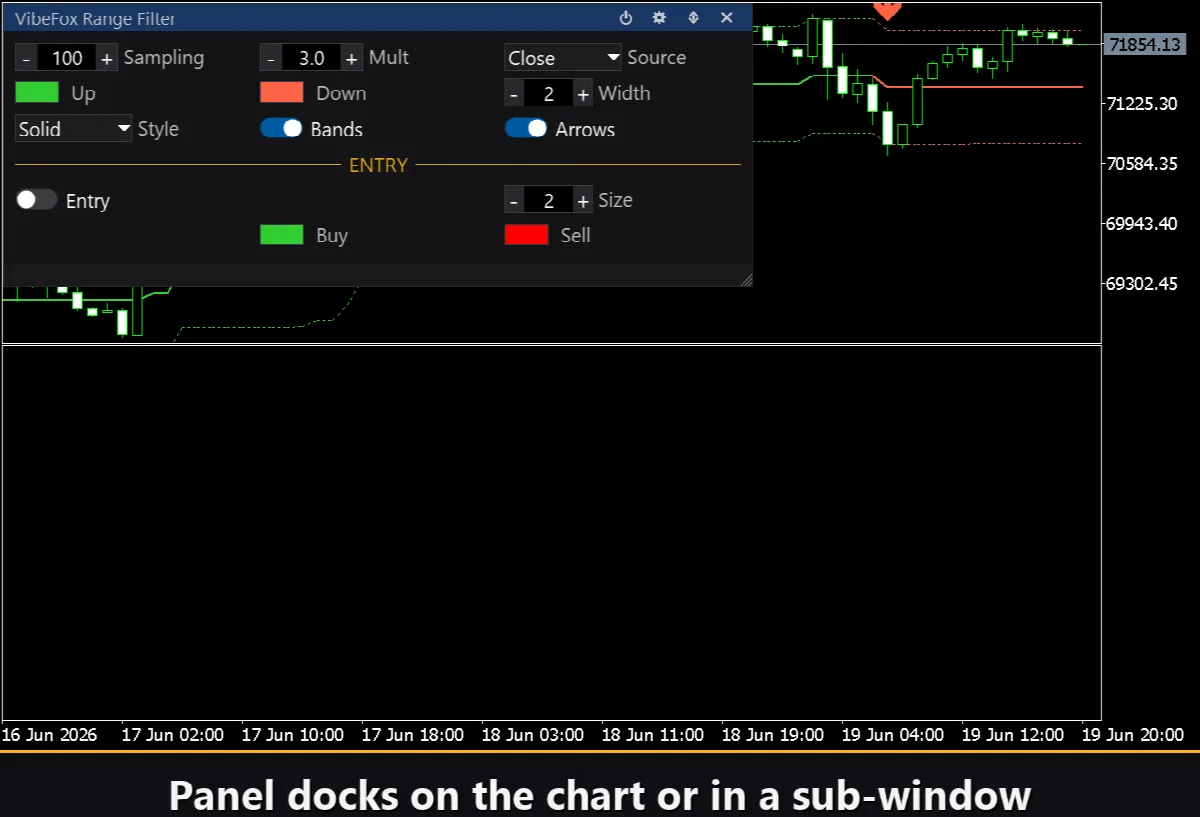
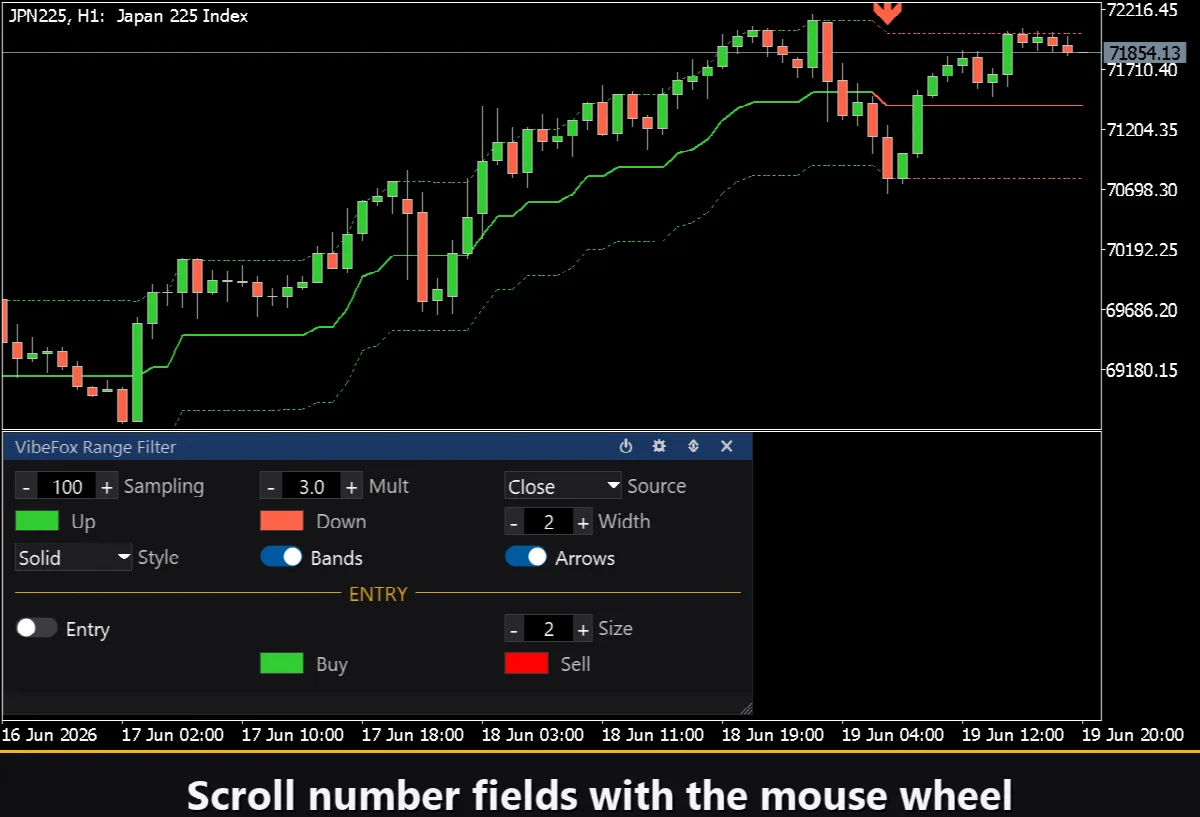
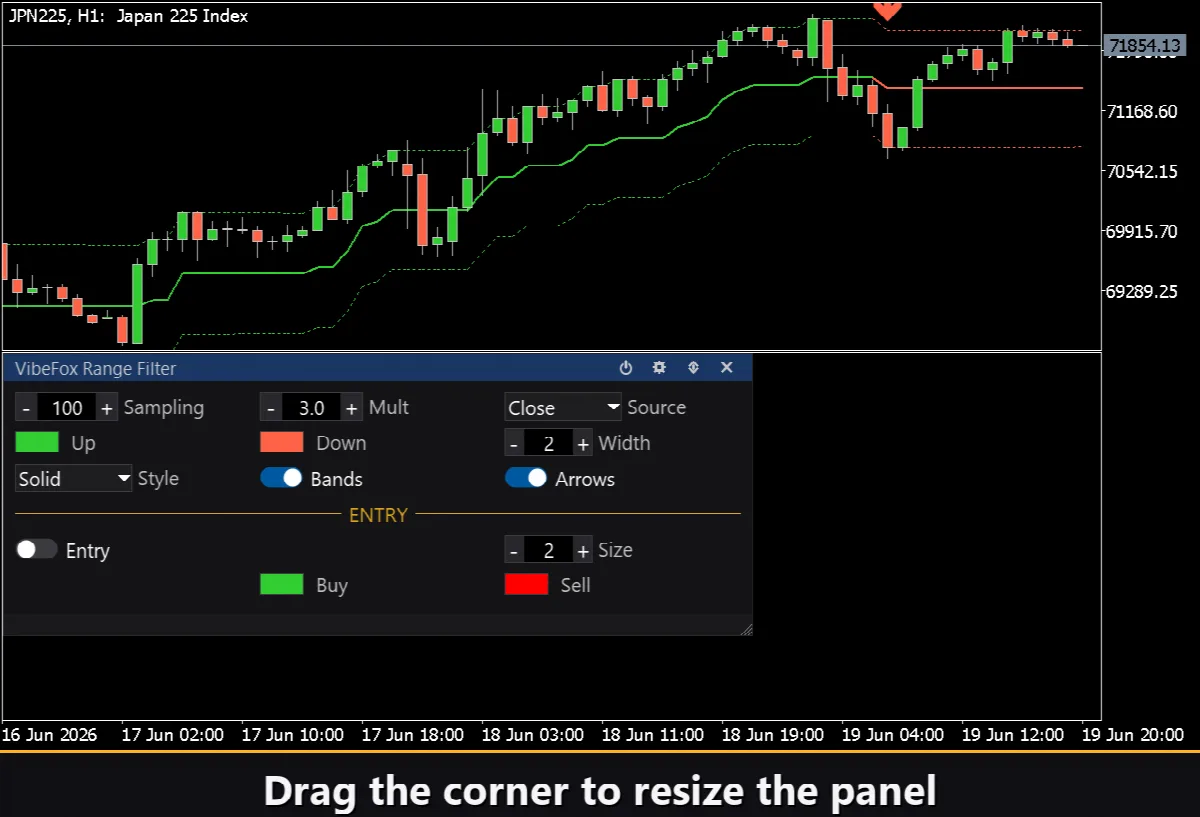
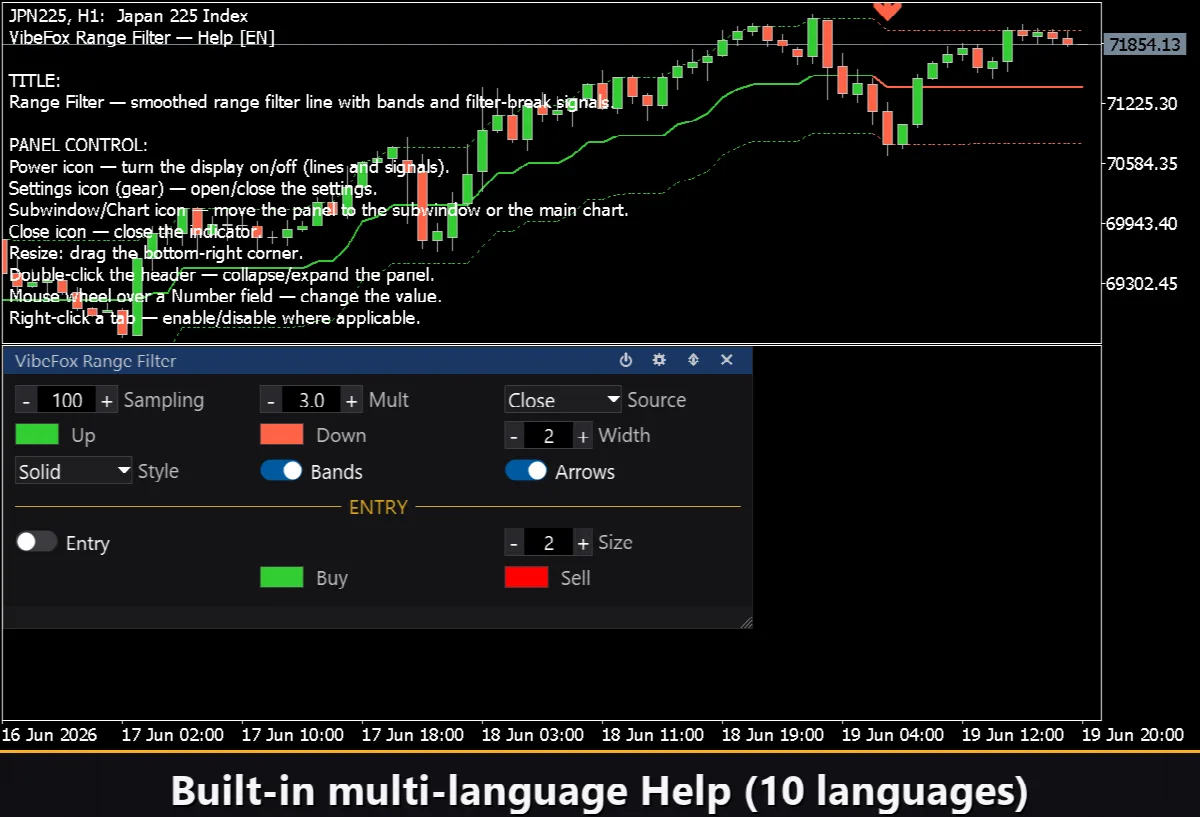
All controls are gathered into a single canvas panel that sits on the chart without occupying a separate subwindow or cluttering the Inputs dialog. The panel can be placed in the indicator subwindow or moved to the main chart with one click.
Power — turns drawing on and off without removing the indicator.
Settings (gear) — opens and closes the settings section.
Subwindow/Chart (arrows) — moves the panel between the indicator subwindow and the main chart.
Close (cross) — removes the indicator from the chart.
Resize — drag the bottom-right corner to scale the panel width and height.
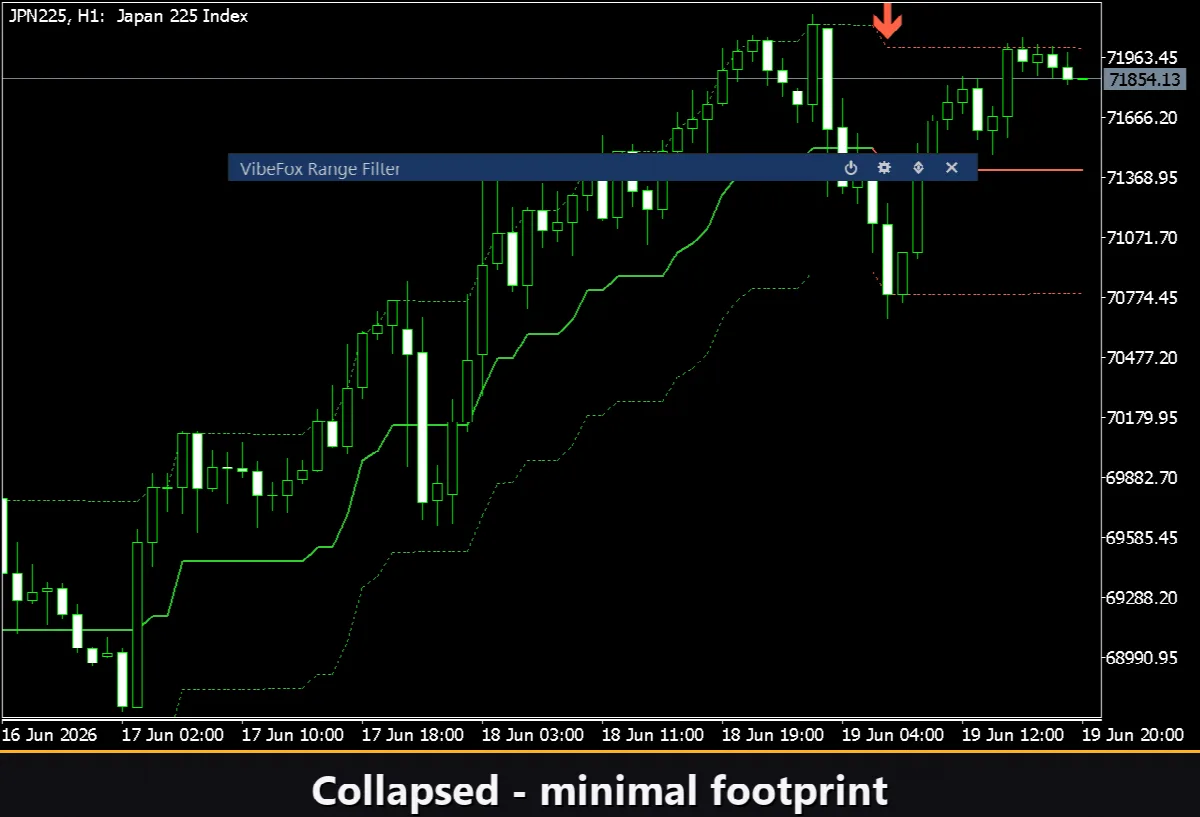
Collapse — double-click the header to fold the panel into a compact strip; double-click again to restore it.
Mouse wheel — hover over any numeric field and scroll the wheel to change the value without typing.
Right-click — right-click a tab or toggle to flip its state where applicable.
Settings and personalization
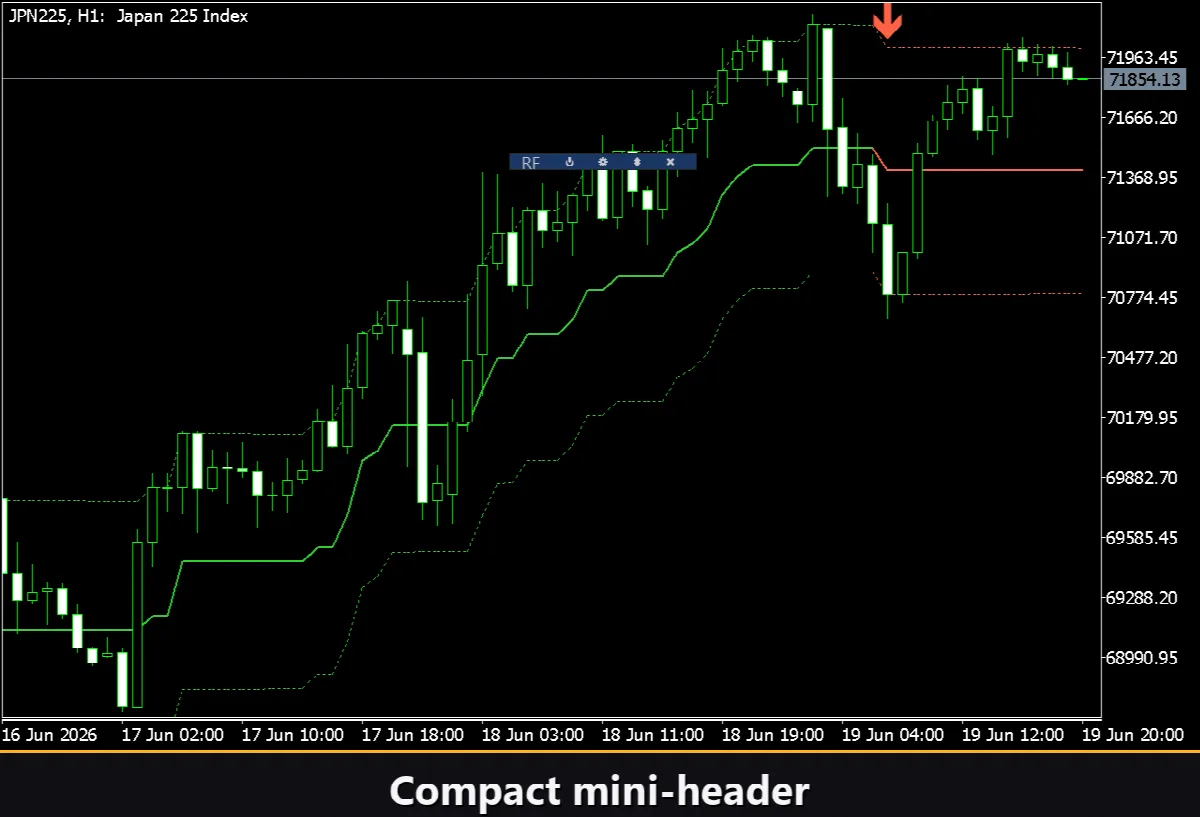
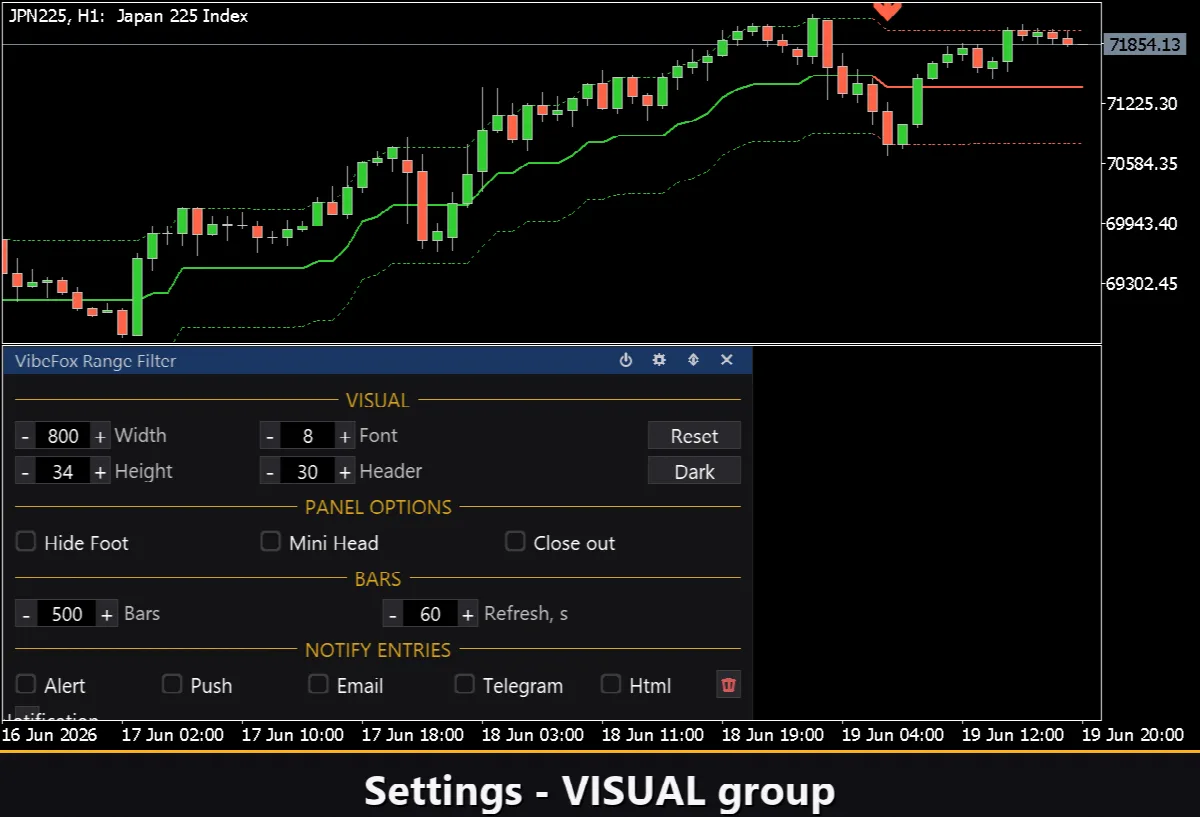
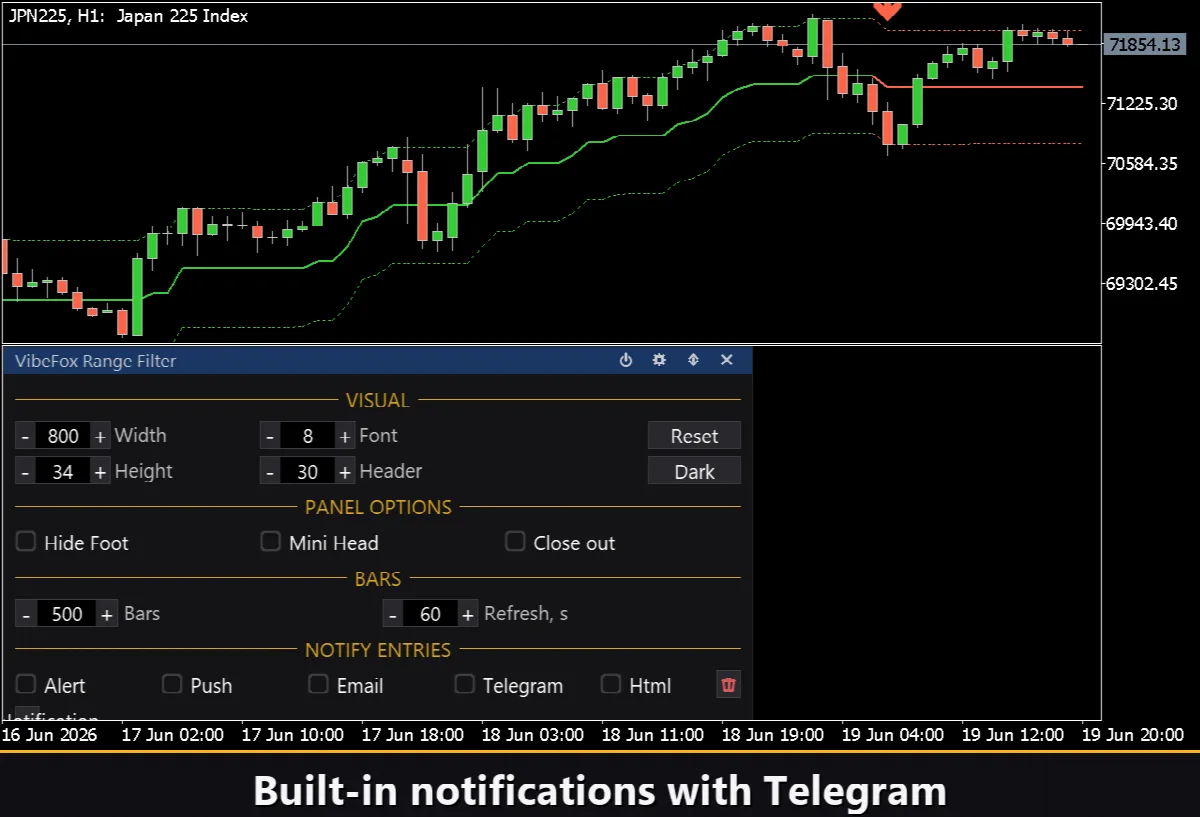
The Settings button opens a section where you fit the panel to your workspace. A light, dark, or automatic Theme adapts the panel to the chart background. Panel Width sets the pixel width; Header Size, Row Height, and Font Size tune the proportions. Hide Footer removes the bottom status bar; Mini Header shows a compact strip when collapsed; Close Outside collapses the panel automatically on a click anywhere outside it. The Bars parameter limits how many bars of filter history are computed and drawn; Refresh sets an auto-update interval in seconds for charts that do not tick often. Run multiple independent copies on one chart by giving each a unique Instance number.
Entry notifications
Each filter-break entry can be dispatched through several channels that you enable independently on the panel.
Alert — a pop-up message inside the terminal.
Push — a mobile push notification to the MetaTrader app on your phone.
Email — a letter sent through the terminal's mail settings.
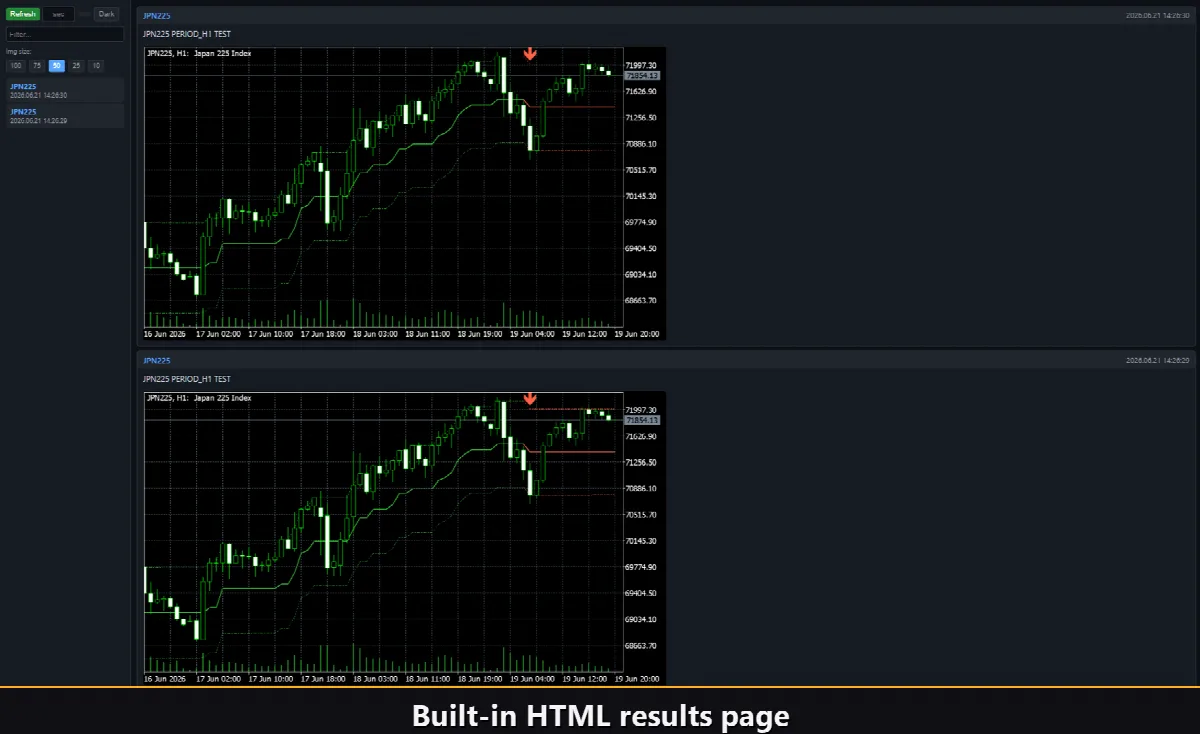
Html — saves the signal with a chart screenshot to the HTML report.
Telegram — sends the alert text together with a chart screenshot to your Telegram chat.
Visual history — HTML report
Enable the Html channel and every entry signal is saved to an HTML report together with a screenshot of the chart at the moment it fired. The report lives in the terminal's Files folder under the VibeFox_RangeFilter directory at MQL5/Files/VibeFox_RangeFilter/result.html and opens in any browser. A one-click trash button on the panel clears the report and its screenshots so you can start fresh at any time.
Telegram alerts
Enable the Telegram channel to receive each signal as an alert text plus a chart screenshot sent straight to your Telegram chat. Enter your bot token and chat id in the Inputs tab. Delivery is handled by the HTML report opened in a browser — the report's embedded JavaScript forwards the message to the Telegram Bot API without any terminal URL whitelist. For this reason, enabling Telegram automatically keeps the Html channel active, and the two work together.
Built-in multilingual help
A full help page is built into the panel, available in 10 languages: English, Russian, German, French, Spanish, Italian, Portuguese, Chinese, Japanese, and Korean. Open the Settings section and click the language button to display the help text directly on the chart.