

VibeFox OBV MT5
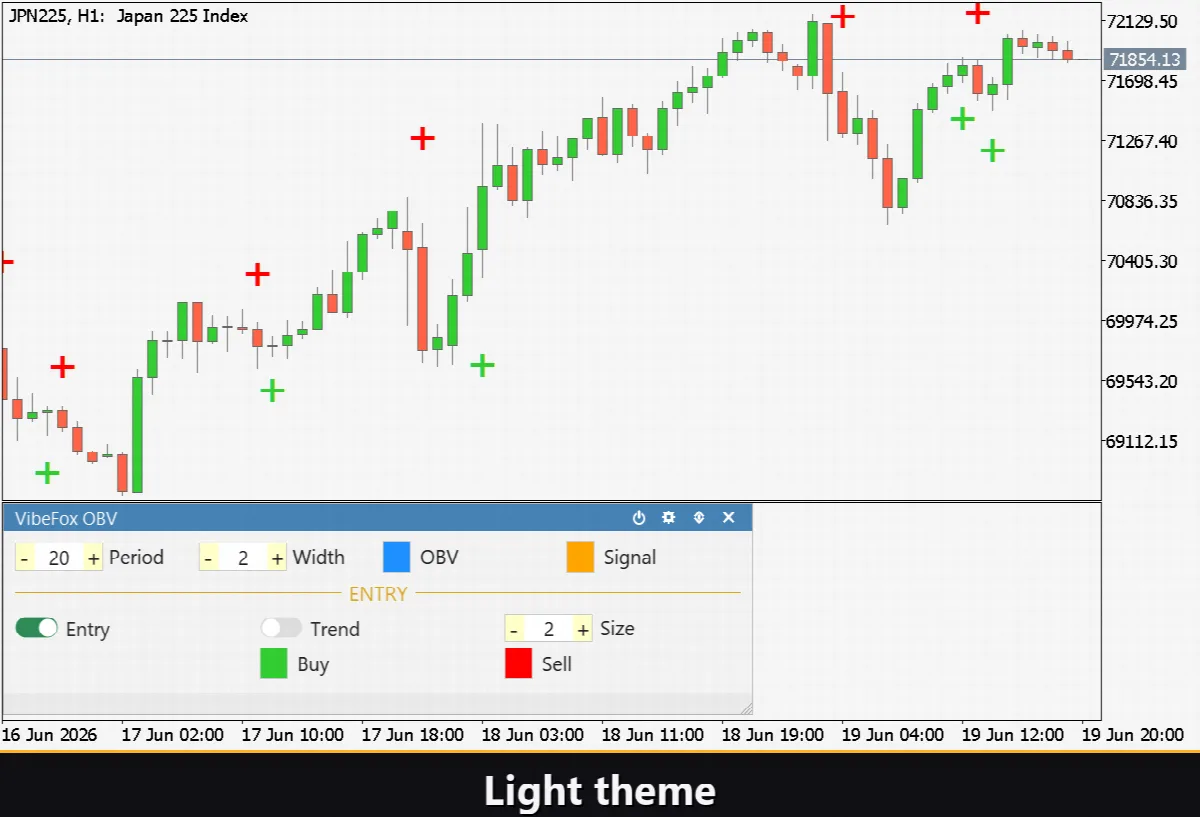
VibeFox OBV is a real-time On-Balance Volume oscillator for MetaTrader 5. It accumulates volume tick by tick based on price direction and draws the OBV line together with a configurable SMA signal line in a separate sub-window. When the two lines cross or the OBV slope reverses, an arrow marker appears directly on the price chart — a clean BUY or SELL signal the moment it forms on a closed bar. Everything is controlled through one smooth interactive canvas panel without opening the terminal's input dialog.
VibeFox OBV — cumulative volume oscillator, signal line and entry signals
VibeFox OBV is a real-time On-Balance Volume oscillator for MetaTrader 5. It accumulates volume tick by tick based on price direction and draws the OBV line together with a configurable SMA signal line in a separate sub-window. When the two lines cross or the OBV slope reverses, an arrow marker appears directly on the price chart — a clean BUY or SELL signal the moment it forms on a closed bar. Everything is controlled through one smooth interactive canvas panel without opening the terminal's input dialog.
What OBV measures
On-Balance Volume is a cumulative indicator: when the current bar closes higher than the previous bar, the full bar volume is added to the running total; when it closes lower, the volume is subtracted. The result is a continuous line that rises when buying pressure dominates and falls when selling pressure takes over. Unlike pure price oscillators, OBV reacts to the weight of volume behind each move, making divergences between OBV and price a classic early-warning sign of trend exhaustion or reversal.
A SMA signal line is drawn over the OBV line in the same sub-window. The Signal Period parameter controls how many bars the SMA averages. When OBV leads price higher while the signal line lags, the divergence is clearly visible without any manual calculation.
Entry points
OBV/MA Cross — BUY and SELL
The OBV/MA Cross signal fires the moment the OBV line crosses its signal SMA on a closed bar. When OBV was below the signal line on the previous closed bar and rises above it on the current closed bar, a BUY marker is placed on the price chart. When OBV was above the signal line and drops below it, a SELL marker appears. Detection runs only on closed bars, so the signal is never redrawn.
Trend Turn — OBV slope reversal
The Trend Turn signal catches the moment OBV reverses direction — from falling to rising or from rising to falling — independent of the signal line position. A slope reversal from down to up produces a BUY marker; a reversal from up to down produces a SELL marker. This signal is suited to traders who want to enter earlier, before a full cross has formed.
Both signals can be enabled or disabled independently on the panel. Marker colours for BUY and SELL are set independently so direction reads in an instant. The Marker Size control scales the arrows from 1 to 5 to suit any chart density.
Visual control
The OBV line colour is set with OBV Line Color and its pixel thickness with OBV Line Width (1-5). The signal SMA colour is set with Signal Line Color. Both lines are plotted as real indicator buffers visible in the sub-window — the scale adjusts automatically because OBV is unbounded. All appearance parameters can be adjusted live on the panel without restarting the indicator.
Interactive panel on the chart
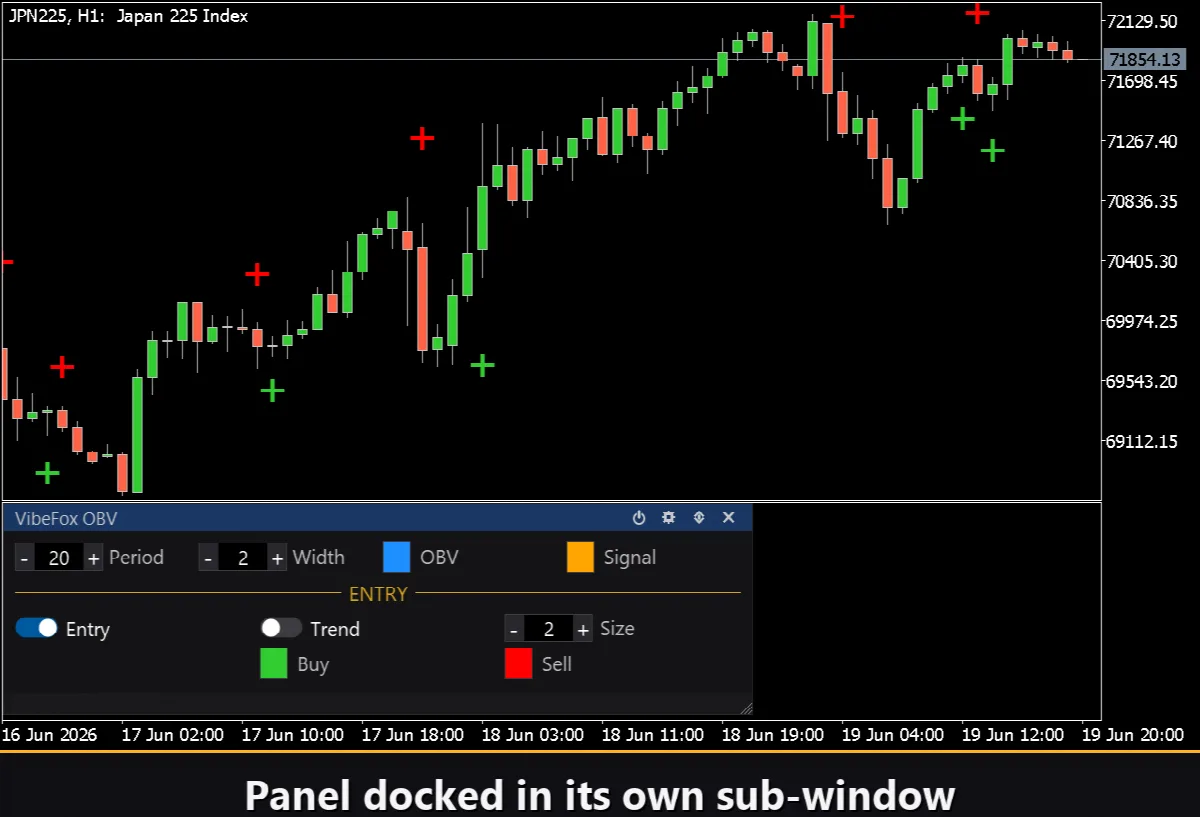
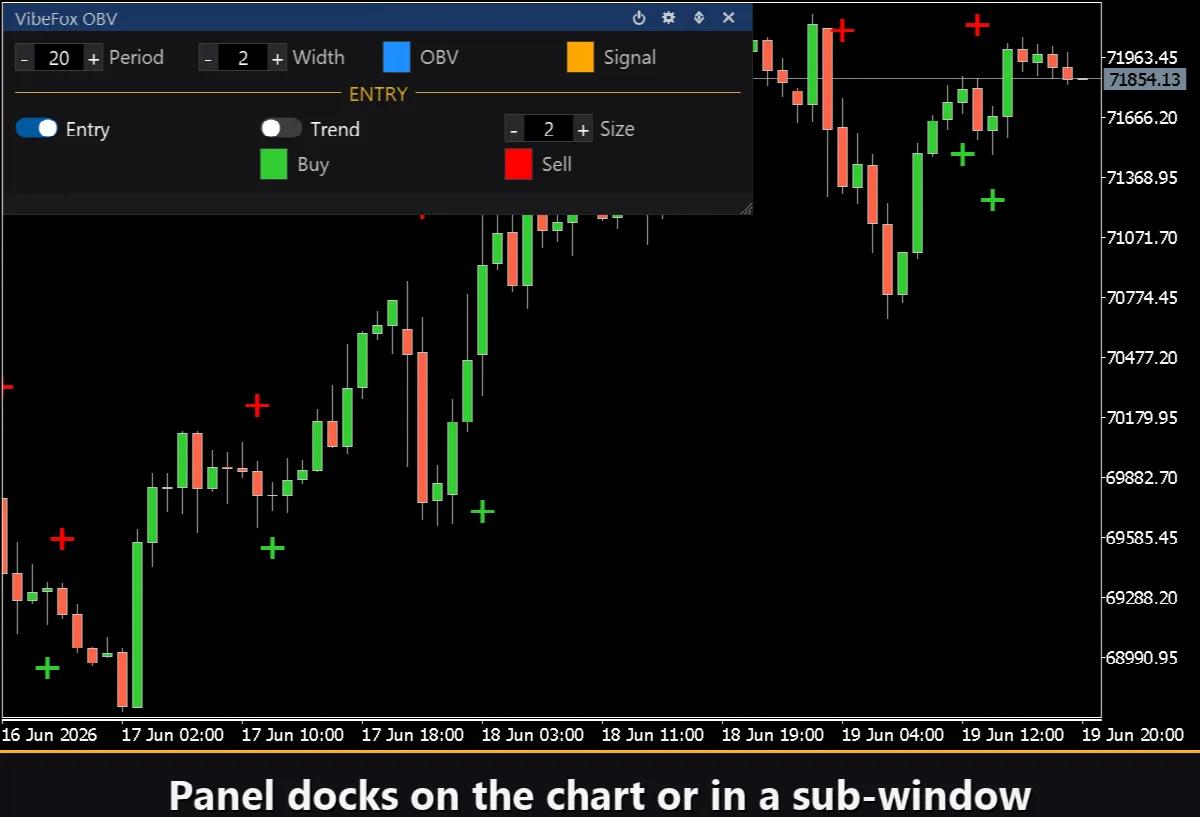
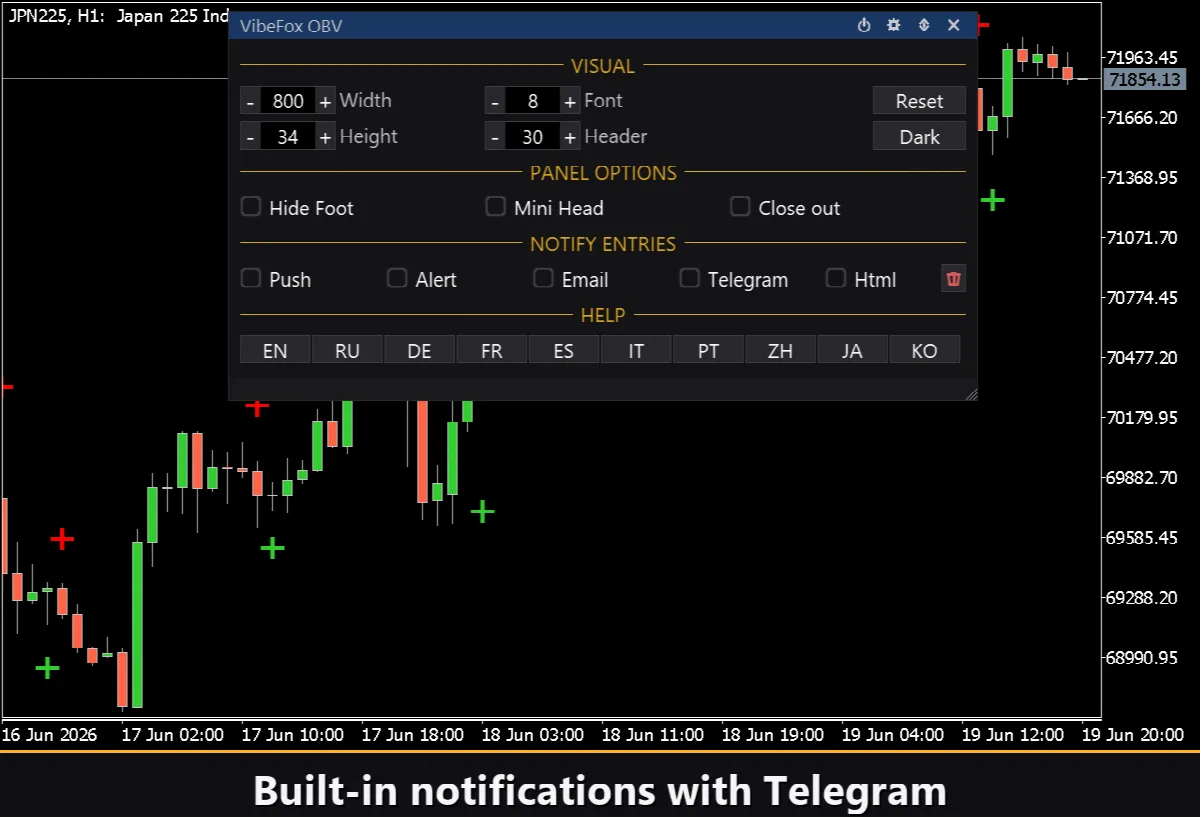
The entire interface is a smooth canvas panel designed for fast mouse interaction. All parameters are arranged in neat rows and the entry settings are highlighted with their own section header so signal controls are never confused with line appearance controls. The panel header contains the management icons.
Power — switches drawing of the OBV lines and signals on and off without removing the indicator from the chart.
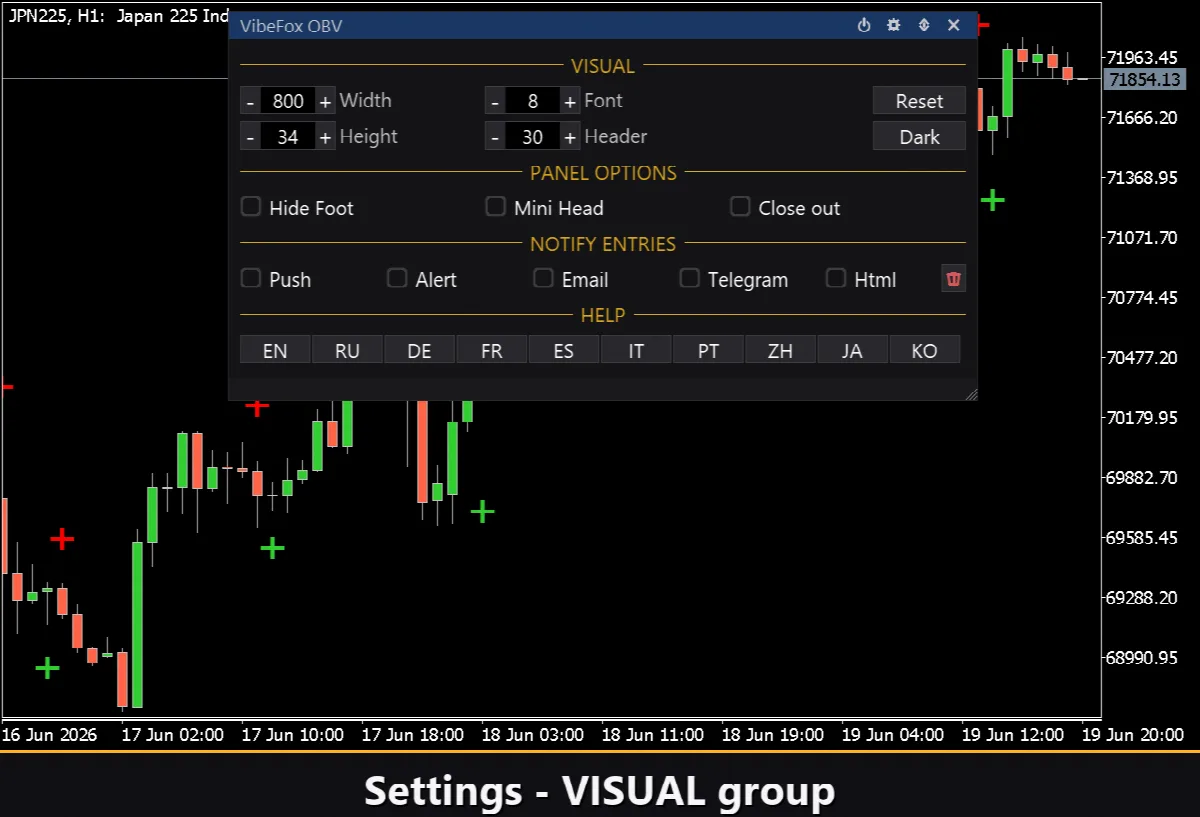
Settings (gear icon) — opens and closes the settings panel.
Updown (arrows) — moves the panel between the sub-window and the main chart.
Close (cross) — removes the indicator from the chart.
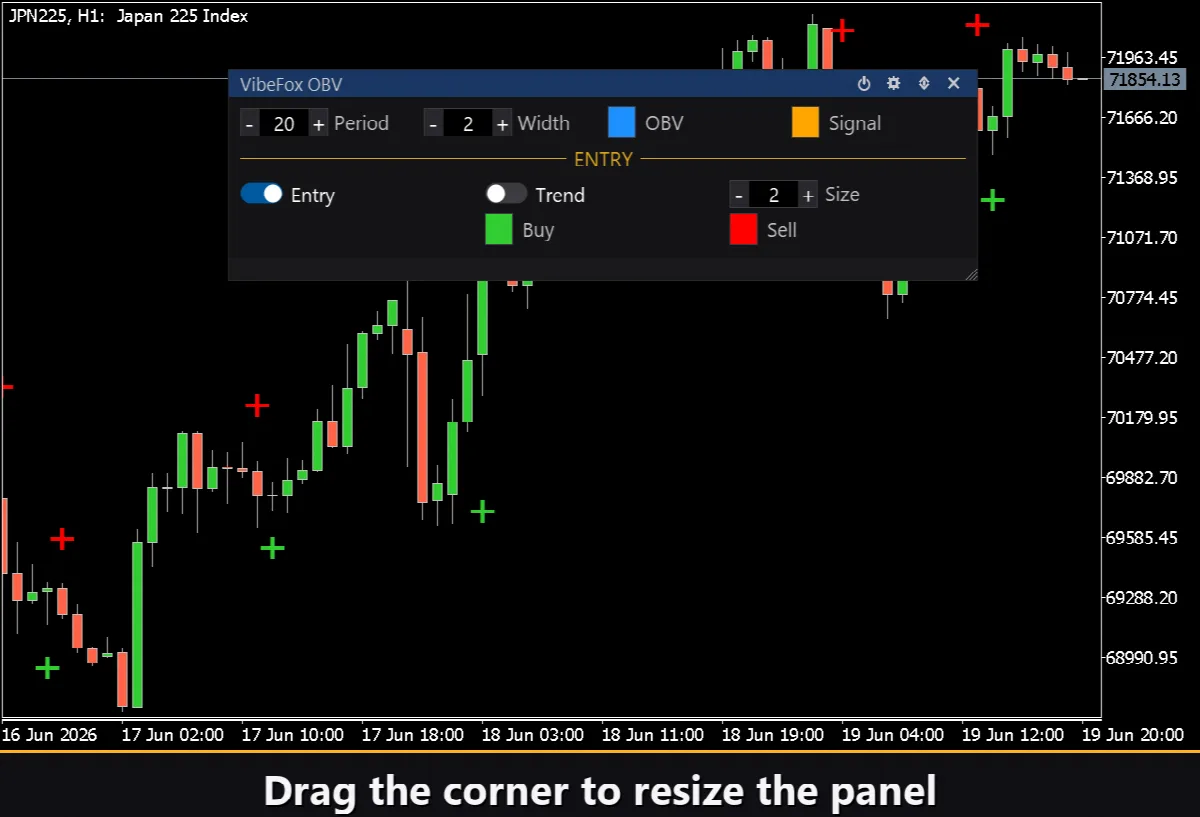
Resizable — drag the bottom-right corner to scale the panel to any size.
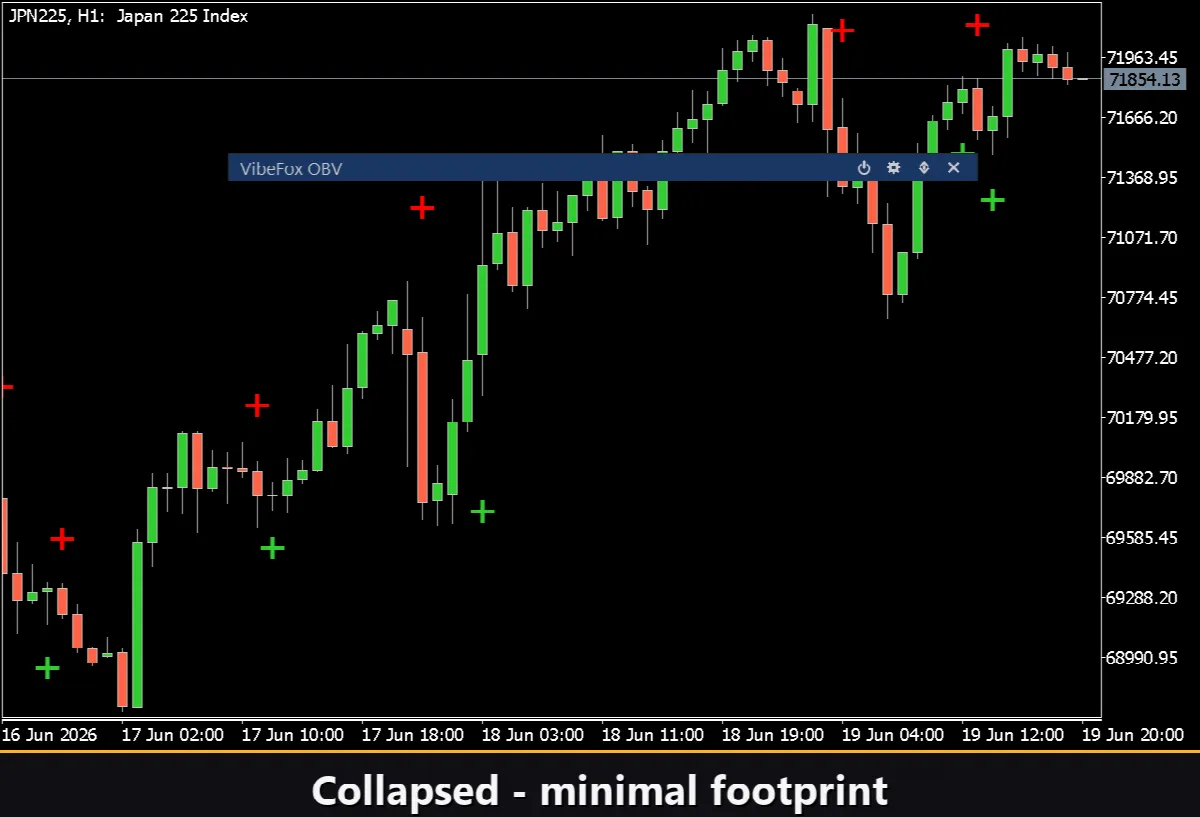
Collapsible — double-click the header to collapse the panel to a compact strip.
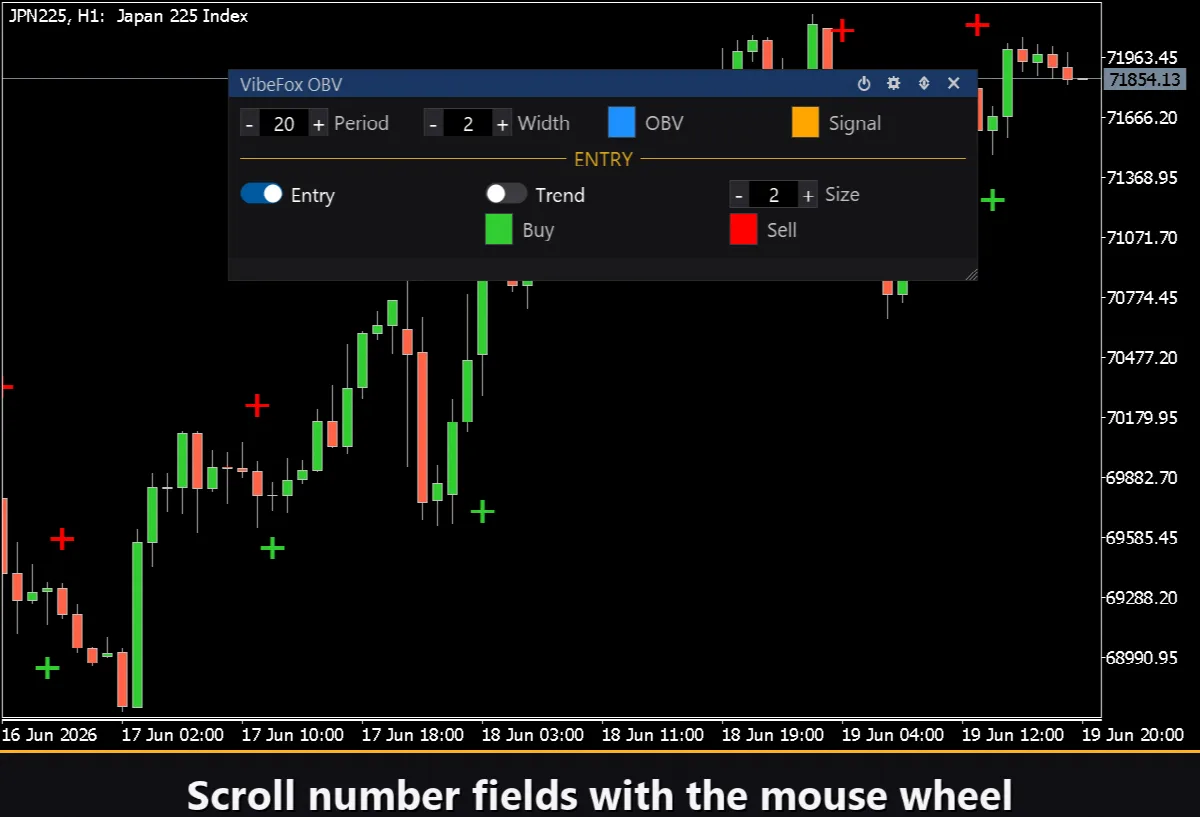
Mouse wheel — hover over any numeric field and scroll to change the value without opening the keyboard.
Settings and personalisation
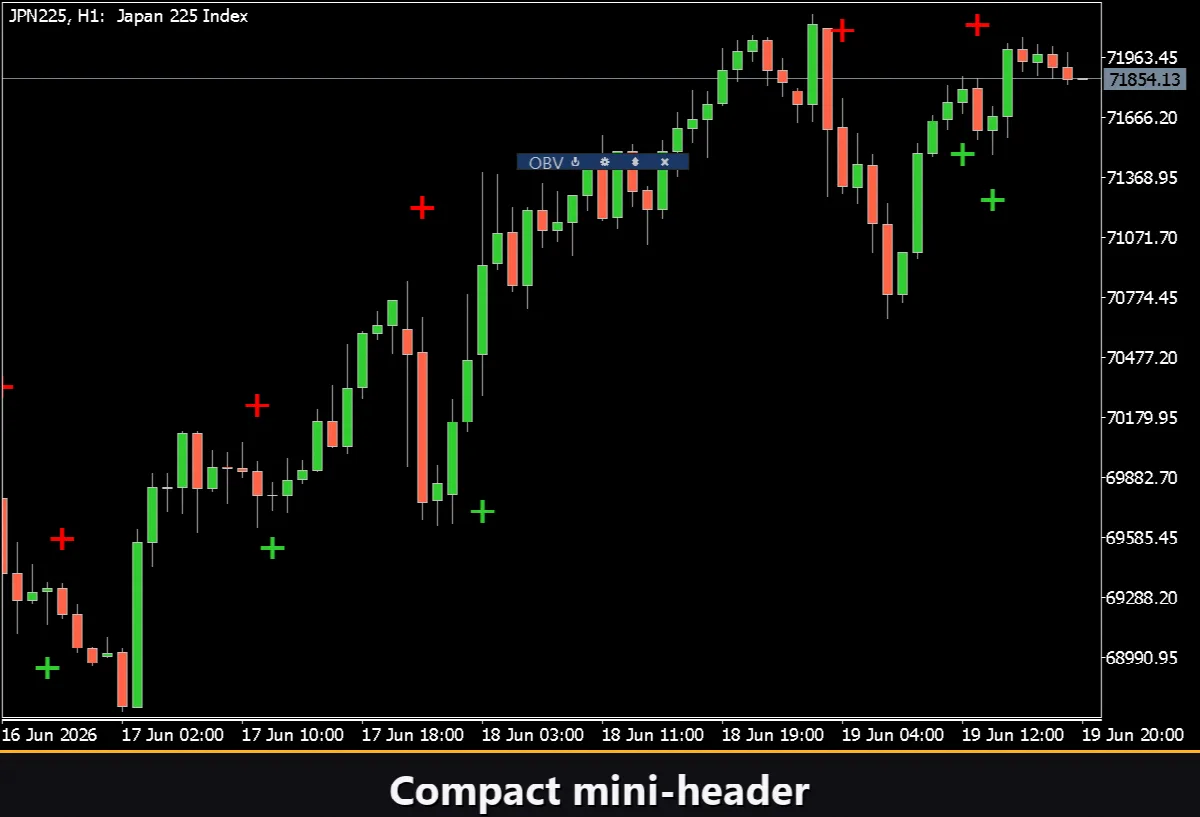
The Settings button opens a section where the panel is fitted to your workspace: light, dark or automatic Theme, configurable panel width, header size, row height and font size. Extra touches let you hide the footer strip via Hide Footer, show a compact header when collapsed with Mini Header, and auto-collapse the panel on a click outside it. Almost all parameters change live on the panel — the Inputs tab only sets starting values. You can also run several independent copies on the same chart by giving each a unique Instance number, letting you monitor different signal periods side by side.
Entry notifications
You do not need to watch the chart waiting for a signal. Each entry can be delivered through several notification channels that are toggled independently on the panel.
Alert — a pop-up message inside the terminal.
Push — a mobile notification to the MetaTrader app on your phone.
Email — a message sent through the terminal's mail settings.
Telegram — the alert text together with a chart screenshot, sent straight to your Telegram chat.
Enable only the channels you need and you will be notified the moment a new entry appears on the symbol and timeframe you are monitoring.
Visual history — Html report
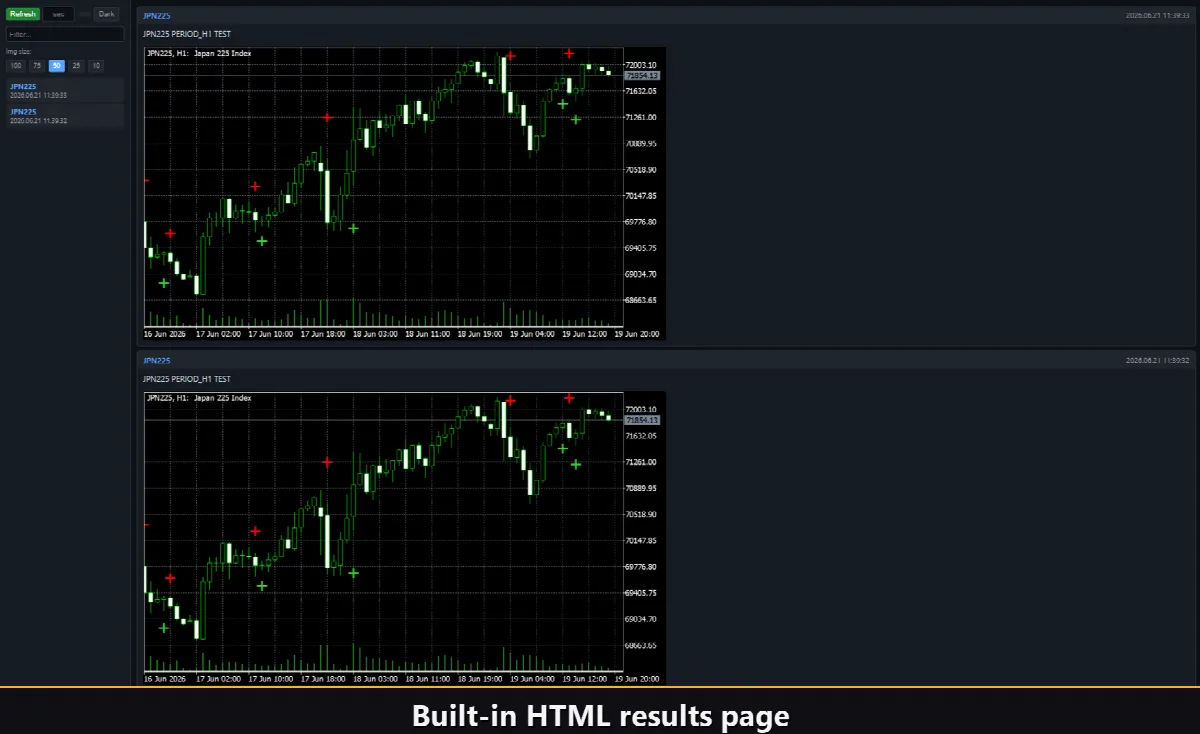
Enable the Html channel and every entry signal is saved to an HTML report together with a screenshot of the chart at the moment of the trigger. The report is stored in the terminal's Files folder, in the VibeFox_OBV sub-directory, and opens in any browser — giving you a visual log of every entry the indicator has found. The trash button clears the report and its screenshots in one click whenever you want to start fresh.
Telegram Alerts
Signals can also be delivered straight to your Telegram chat — the alert text together with a screenshot of the chart at the moment of detection. Turn on the Telegram channel and enter your bot token and chat id in the inputs.
Delivery rides on the HTML report: each new signal is written into the report, and the report — opened in a browser — forwards it to your Telegram chat on its own. For this reason, enabling Telegram automatically keeps the Html report on, and the two channels work together.
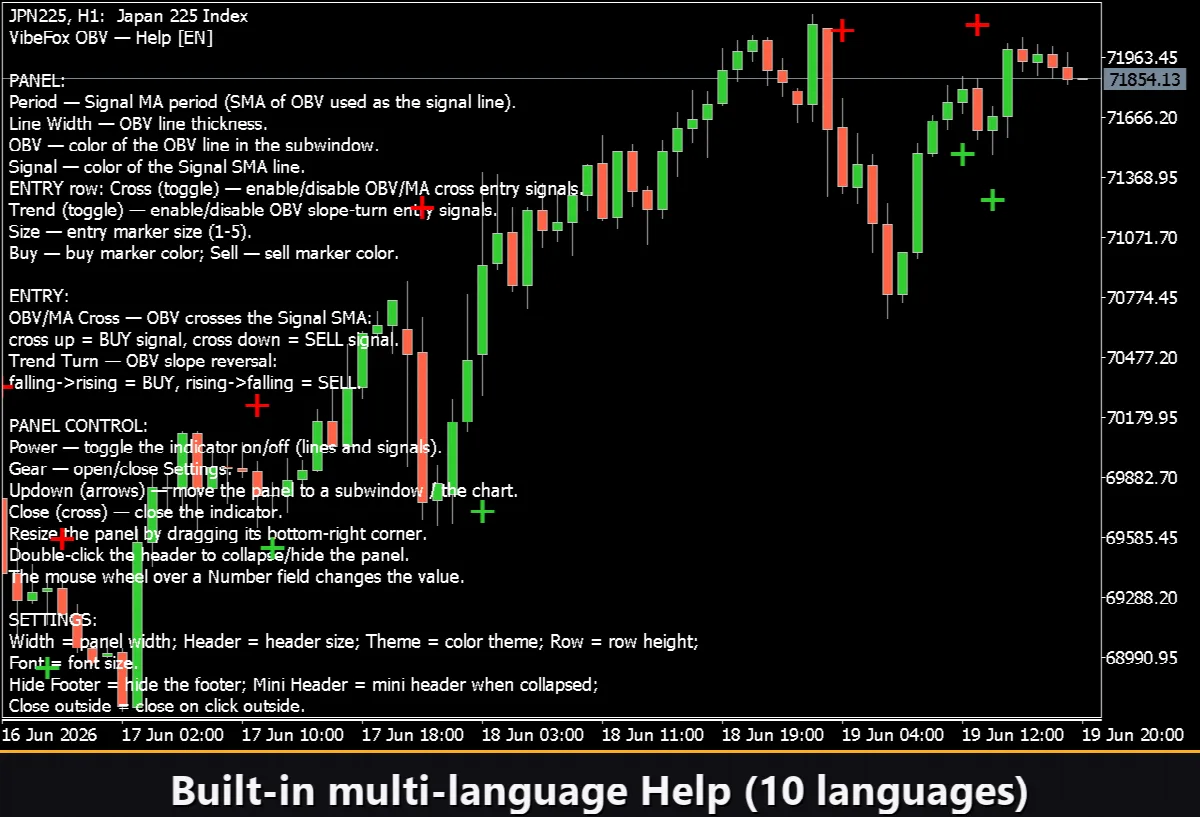
Built-in multi-language help
A complete help page is built into the panel and available in 10 languages, so every control is explained right where you use it.