

VibeFox Price Action MT5
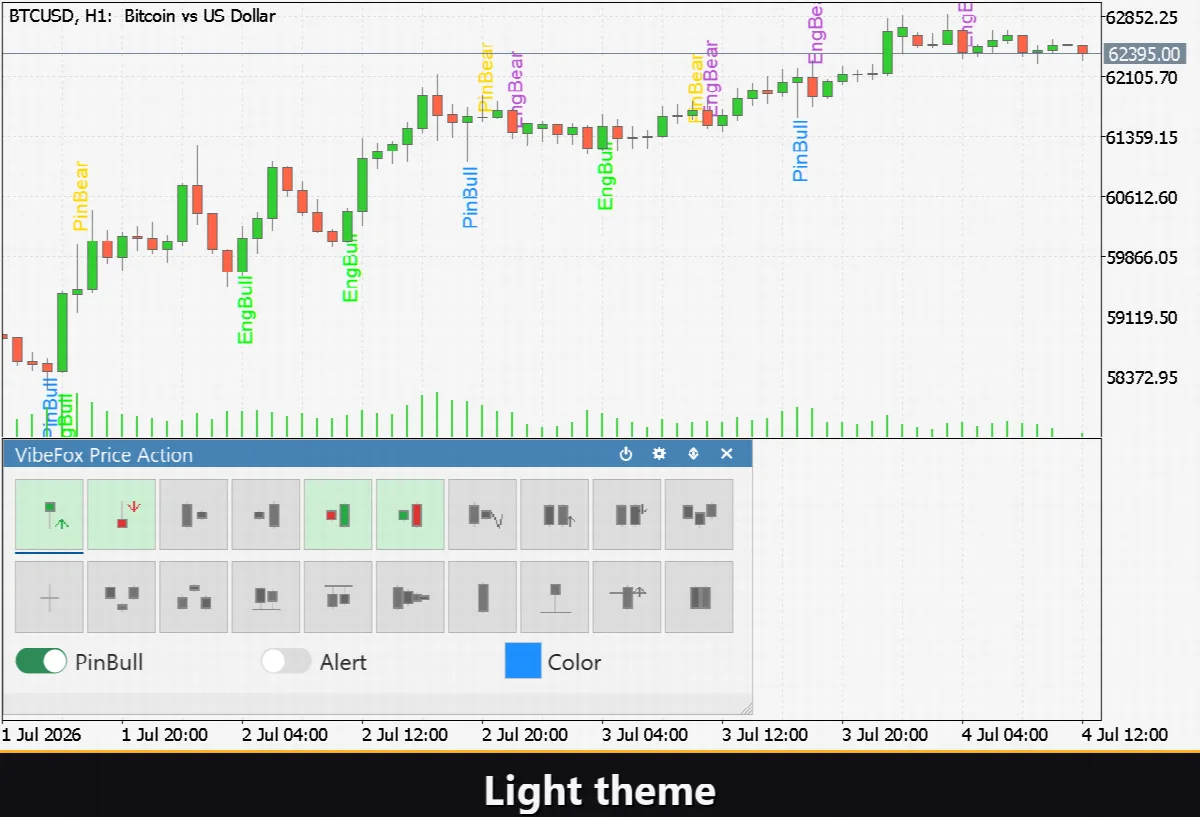
VibeFox Price Action is a real-time price-action scanner for MetaTrader 5. It watches every closing bar for around twenty classic candlestick and bar patterns — pin bars, inside and outside bars, engulfings, fakeys, multi-bar reversals, stars, tweezers, range squeezes, climaxes and breakouts — and marks each one the moment it forms, right on the price chart. Every pattern is an independent toggle, and the whole interface is gathered into one modern interactive panel with two rows of icon buttons. Instead of scanning candle by candle yourself, you switch on the patterns you trade and let the indicator flag them for you.
VibeFox Price Action — a 20-pattern price-action scanner with entry markers
VibeFox Price Action is a real-time price-action scanner for MetaTrader 5. It watches every closing bar for around twenty classic candlestick and bar patterns — pin bars, inside and outside bars, engulfings, fakeys, multi-bar reversals, stars, tweezers, range squeezes, climaxes and breakouts — and marks each one the moment it forms, right on the price chart. Every pattern is an independent toggle, and the whole interface is gathered into one modern interactive panel with two rows of icon buttons. Instead of scanning candle by candle yourself, you switch on the patterns you trade and let the indicator flag them for you.
How the indicator works
On every new bar the indicator runs a set of detectors over the recent price history. Each detector is a pure price-action rule expressed in candle geometry — body size, wick length, the relationship between consecutive bars, and the range over a short lookback window. When a rule is satisfied on a bar, that pattern places an entry marker on the chart in the proper direction (Buy below the bar, Sell above it), optionally with a short text label naming the pattern.
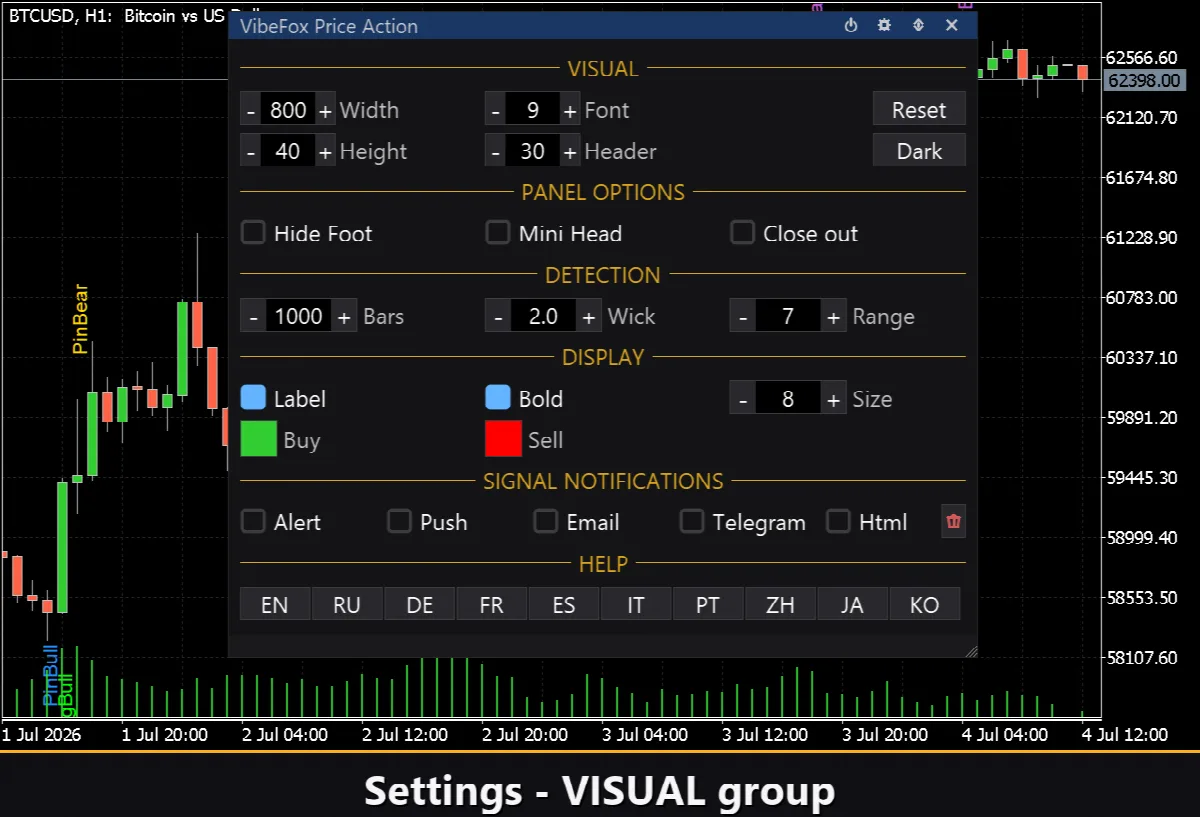
Three detection settings shape how the rules behave. Bars limits how much history is scanned (a smaller value redraws faster on heavy charts). Wick is the wick-to-body ratio a candle must reach to qualify as a pin bar — raise it for stricter pins, lower it for looser ones. Range is the lookback length used by the patterns that compare the current bar to a recent window — breakout, NR4/NR7 squeeze and climax. The indicator lives in its own subwindow, where the panel sits, while all markers and labels are drawn on the price chart itself.
The pattern library
The scanner ships with twenty patterns, split across two rows of ten icon buttons. A few common ones are switched on by default so the chart shows signals immediately.
Pin Bar Bull (Hammer) — a long lower wick rejecting lower prices: a bullish reversal hint.
Pin Bar Bear (Shooting Star) — a long upper wick rejecting higher prices: a bearish reversal hint.
Inside Bar — a bar fully contained within the previous bar's range: compression before a move.
Outside Bar — a bar whose range engulfs the previous bar's range: a volatility expansion.
Bullish Engulfing — an up bar whose body engulfs the previous down body: buyers take over.
Bearish Engulfing — a down bar whose body engulfs the previous up body: sellers take over.
Fakey — an inside-bar false breakout that snaps back: a trap and reversal setup.
Two-Bar Reversal Bull / Bear — a strong bar reversed by an equally strong opposite bar.
Three-Bar Reversal — a three-candle turn marking a local top or bottom.
Doji / Indecision — a tiny body with balanced wicks: indecision at a level.
Morning Star — a three-bar bullish bottoming sequence.
Evening Star — a three-bar bearish topping sequence.
Tweezer Bottom / Top — two bars sharing a low (bottom) or a high (top): a mirror reversal.
NR4 / NR7 Squeeze — the narrowest range of the last 4 or 7 bars: a contraction that often precedes a breakout.
Wide-Range Bar — a momentum bar far larger than the recent average range.
Exhaustion / Climax Bar — an oversized bar after an extended move: a possible blow-off.
Breakout Bar — a close beyond the recent range: structure breaking out.
Railroad Tracks — two adjacent, opposite, near-equal bars: an abrupt mirror reversal.
Entry markers and signals
Each pattern marks its bar with a directional entry glyph. A bullish pattern places a Buy marker below the candle; a bearish pattern places a Sell marker above it; a neutral pattern (such as a doji or NR squeeze) places an indecision dot. The Marker selector switches the glyph between a plain cross (+), filled triangles, or arrows with a tail, and the Size Entry control scales the marker in pixels (6 to 40). An optional text label prints the pattern's short name next to the marker. Markers are colored by direction with the global Buy and Sell colors, and any pattern can override its color individually from its own row.
Interactive on-chart panel
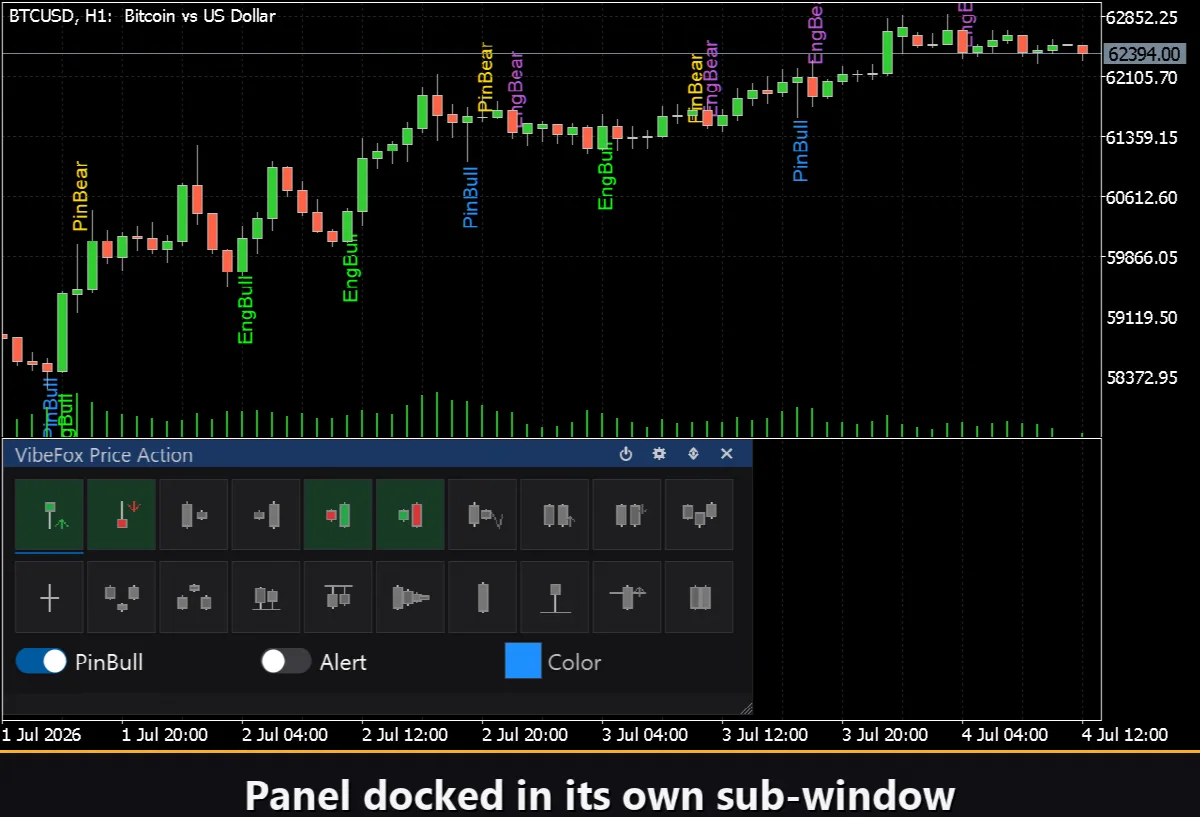
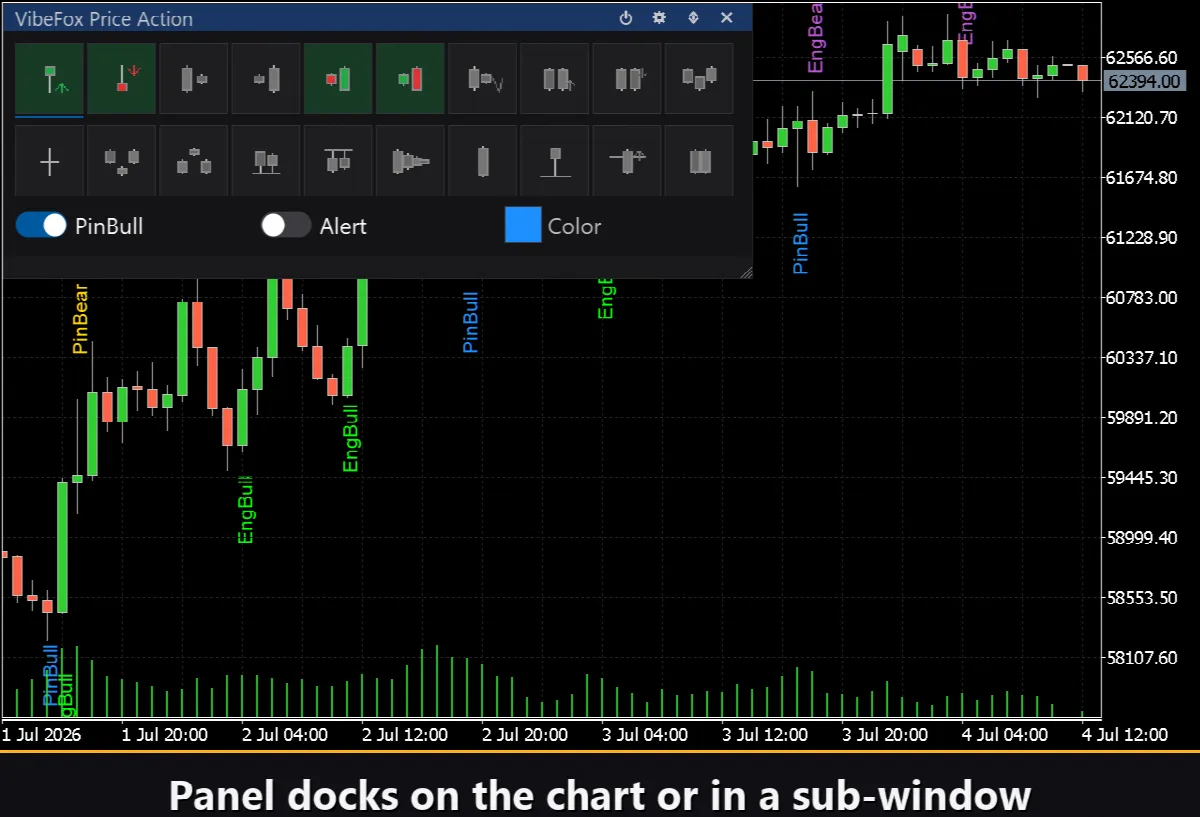
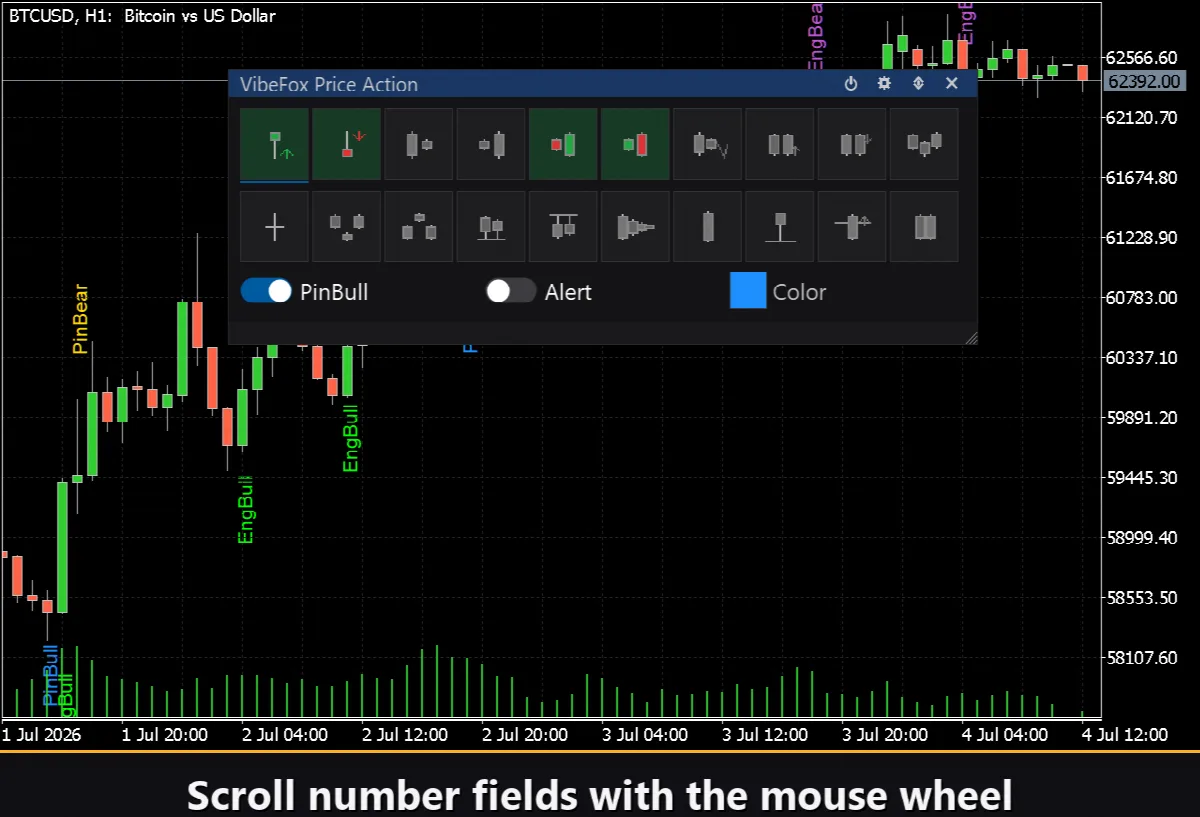
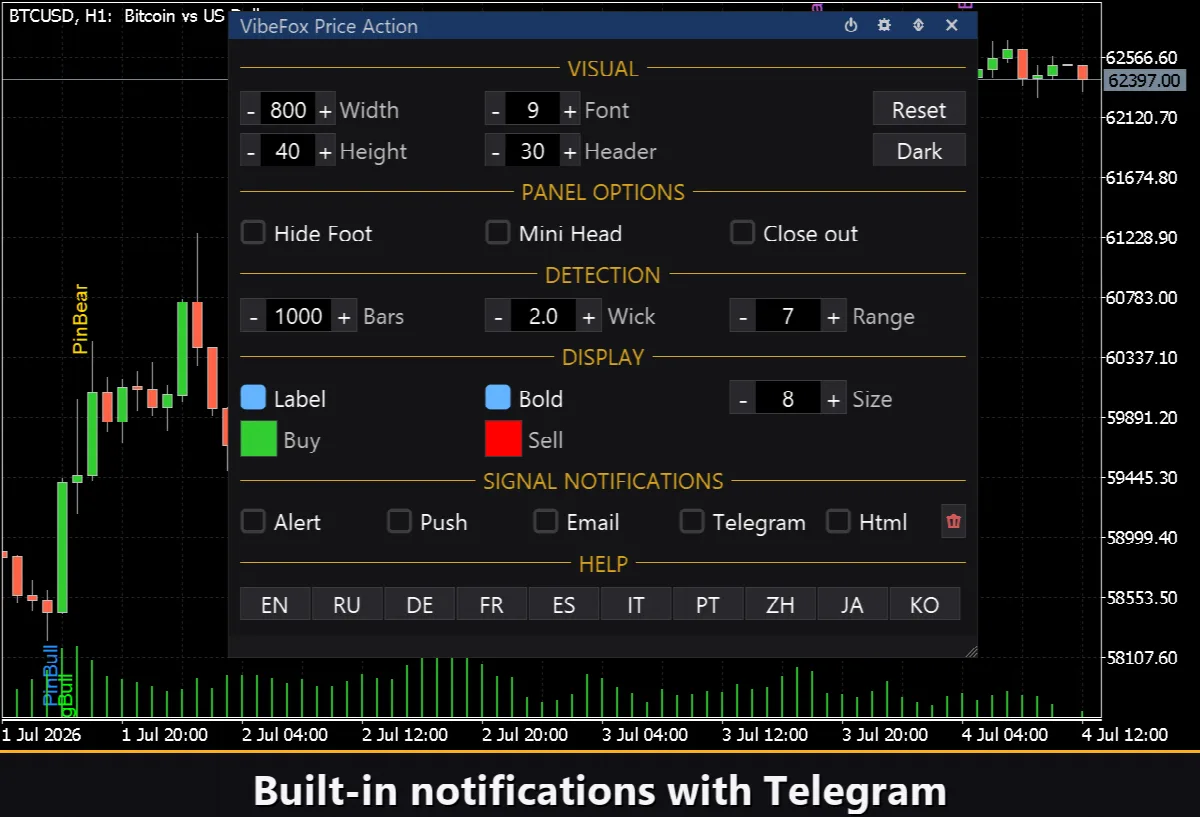
The whole interface is a smooth canvas-based panel built for fast mouse control. At its center are two rows of icon buttons — the tab-bars — holding ten patterns each. They are the heart of the workflow:
Left-click a pattern icon to select it. A settings row opens just below the rows with that pattern's Enable toggle, Alert toggle and Color picker, so you can fine-tune exactly that pattern.
Right-click a pattern icon to turn it on or off instantly, without changing the current selection — the fastest way to add or drop a pattern from the chart.
A small strip on each icon reflects its state, so you can see at a glance which patterns are active and which have alerts armed. The header holds the control icons:
Power — shows or hides all signal markers without removing the indicator.
Settings (gear) — opens and closes the settings section.
Updown (arrows) — moves the panel between its subwindow and the main chart.
Close (cross) — closes the indicator.
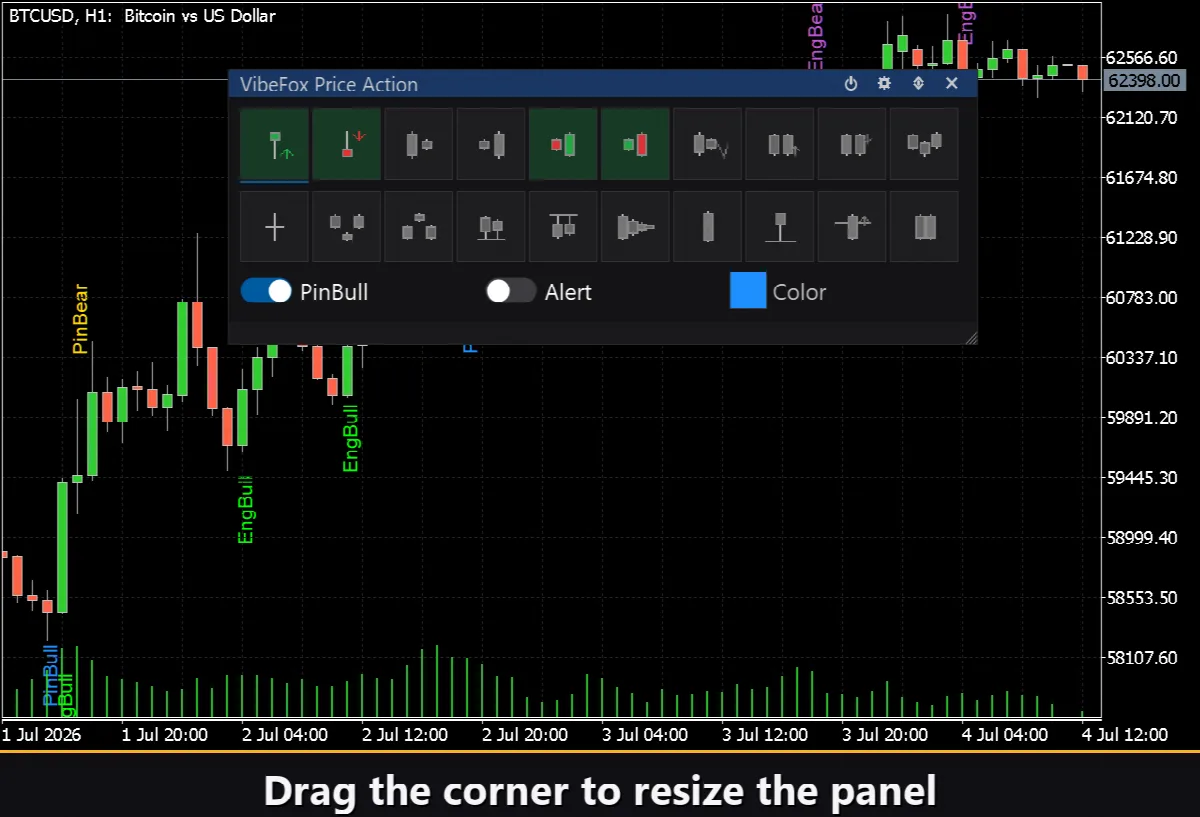
Resizable — drag the bottom-right corner to scale the panel.
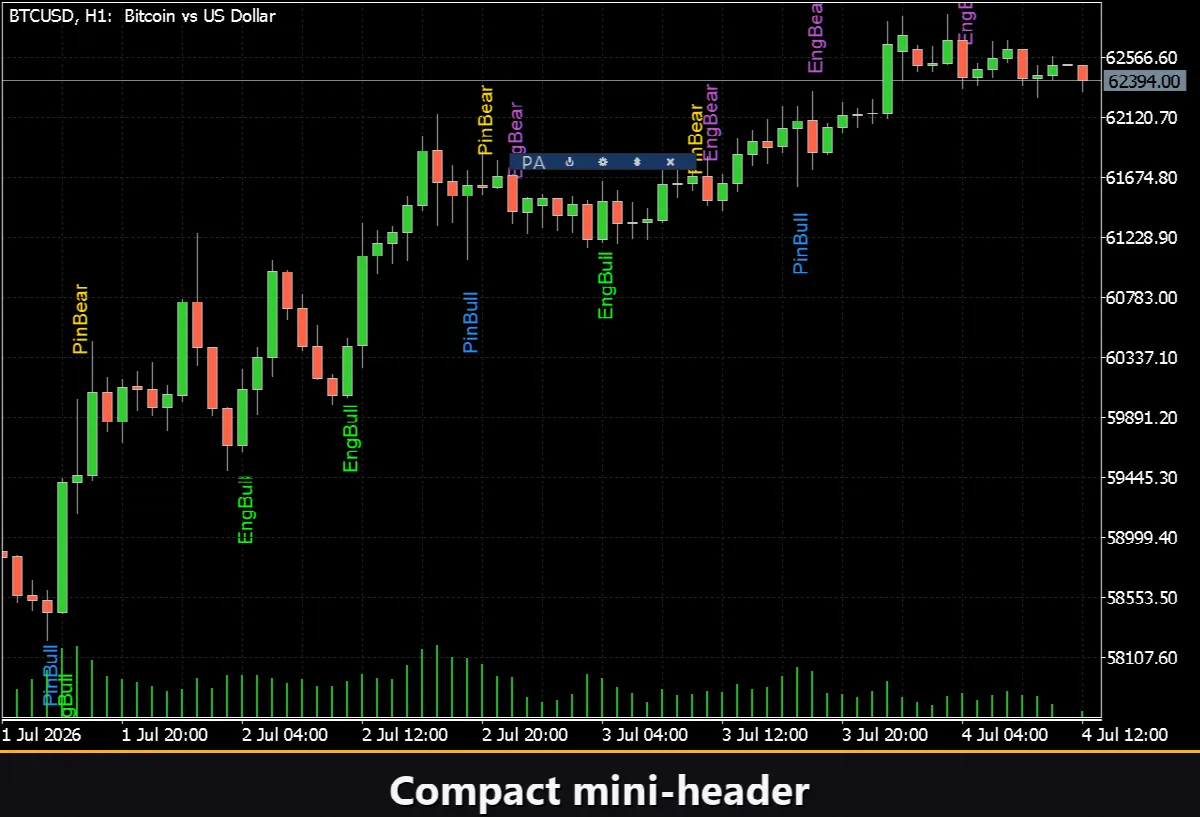
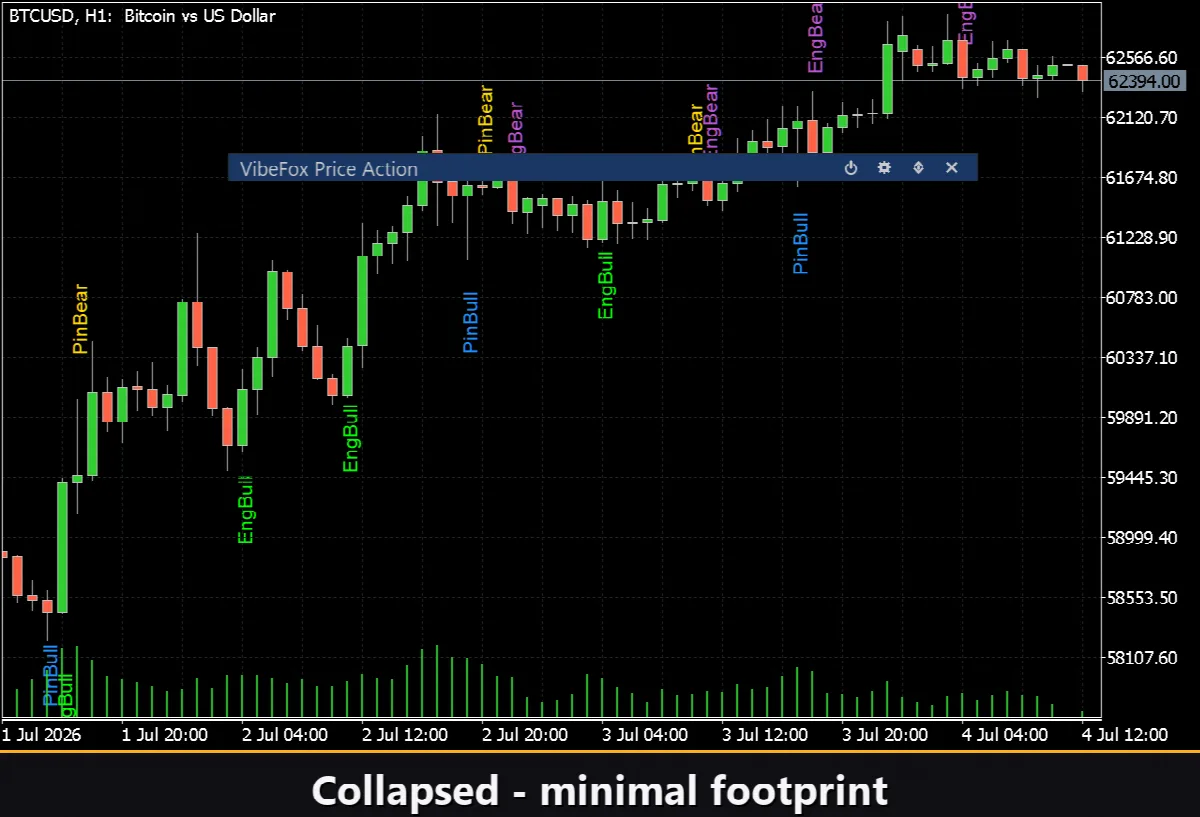
Collapsible — a double click on the header collapses the panel into a compact strip.
Mouse wheel — hover over any numeric field and scroll to change the value.
Settings and personalization
The Settings button opens a section grouped into DETECTION, DISPLAY and SIGNAL NOTIFICATIONS. DETECTION holds Bars, Wick and Range. DISPLAY controls the label (show, bold, font size), the marker (Size Entry, Marker glyph) and the default Buy / Sell colors. The same section also fits the panel to your workspace — a light, dark or automatic Theme, panel width, header size, row height and font size. Almost every parameter changes live right on the panel; the input fields on the Inputs tab only set the starting values. You can also run several independent copies on one chart by giving each a unique Instance.
Entry notifications
You do not need to sit and watch the chart. When a pattern with its Alert toggle armed appears on a freshly closed bar, the signal can be sent through several channels enabled independently in the SIGNAL NOTIFICATIONS group.
Alert — a pop-up message inside the terminal.
Push — a mobile notification to the MetaTrader app on your phone.
Email — a letter sent through the terminal's mail settings.
Telegram — the signal text together with a chart screenshot, sent straight to your Telegram chat.
Enable only the channels you need, and you will be notified the moment a pattern you care about fires on the symbol and timeframe you are working with.
Visual history (HTML report)
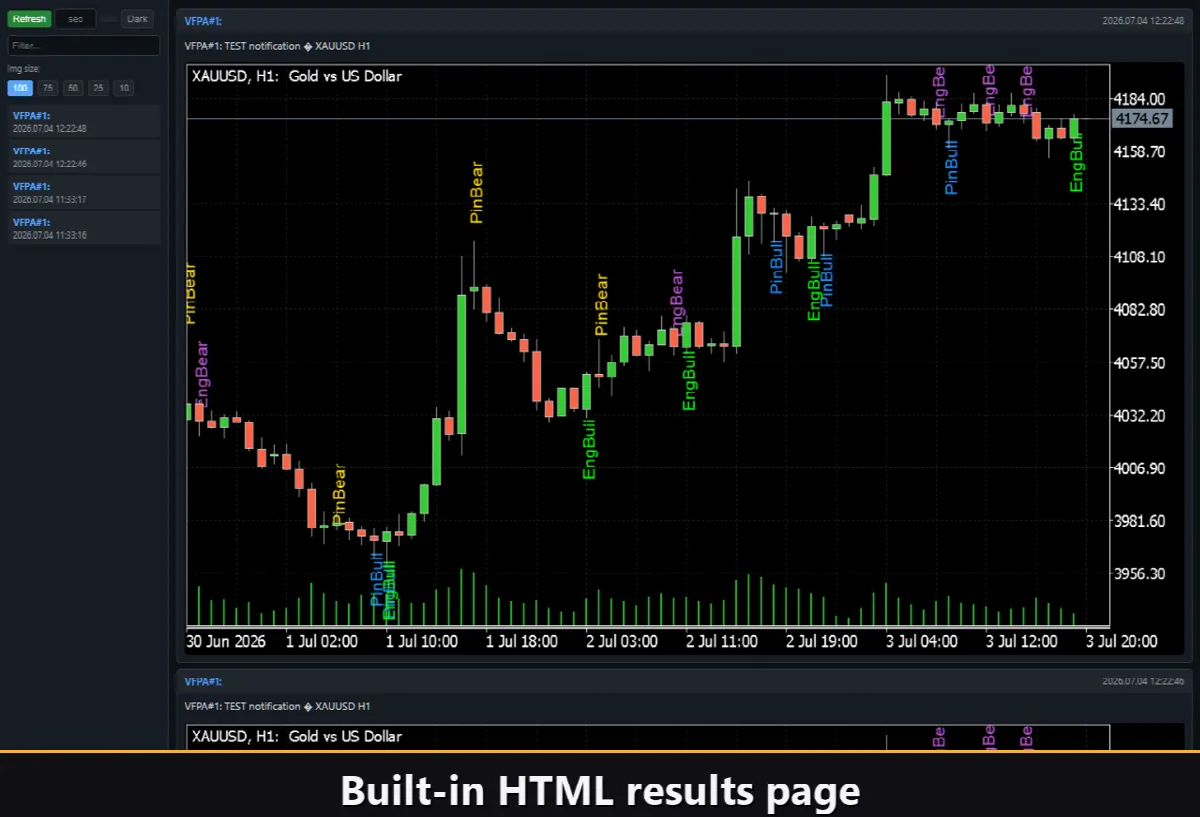
Enable the Html channel, and every signal is saved to an HTML report together with a screenshot of the chart at the moment it fired. The report is stored in the terminal's Files folder, in the VibeFox_Price_Action directory (MQL5/Files/VibeFox_Price_Action/result.html), and opens in any browser — a visual log of every pattern the scanner found. A one-click trash button clears the report and its screenshots whenever you want to start over.
Telegram Alerts
Signals can also be delivered straight to your Telegram chat — the signal text together with a screenshot of the chart at the moment of detection. Turn on the Telegram channel and enter your bot token and chat id in the inputs.
Delivery rides on the HTML report: each new signal is written into the report, and the report — opened in a browser — forwards it to your Telegram chat on its own. For this reason, enabling Telegram automatically keeps the Html report on, and the two channels work together.
Built-in multilingual help
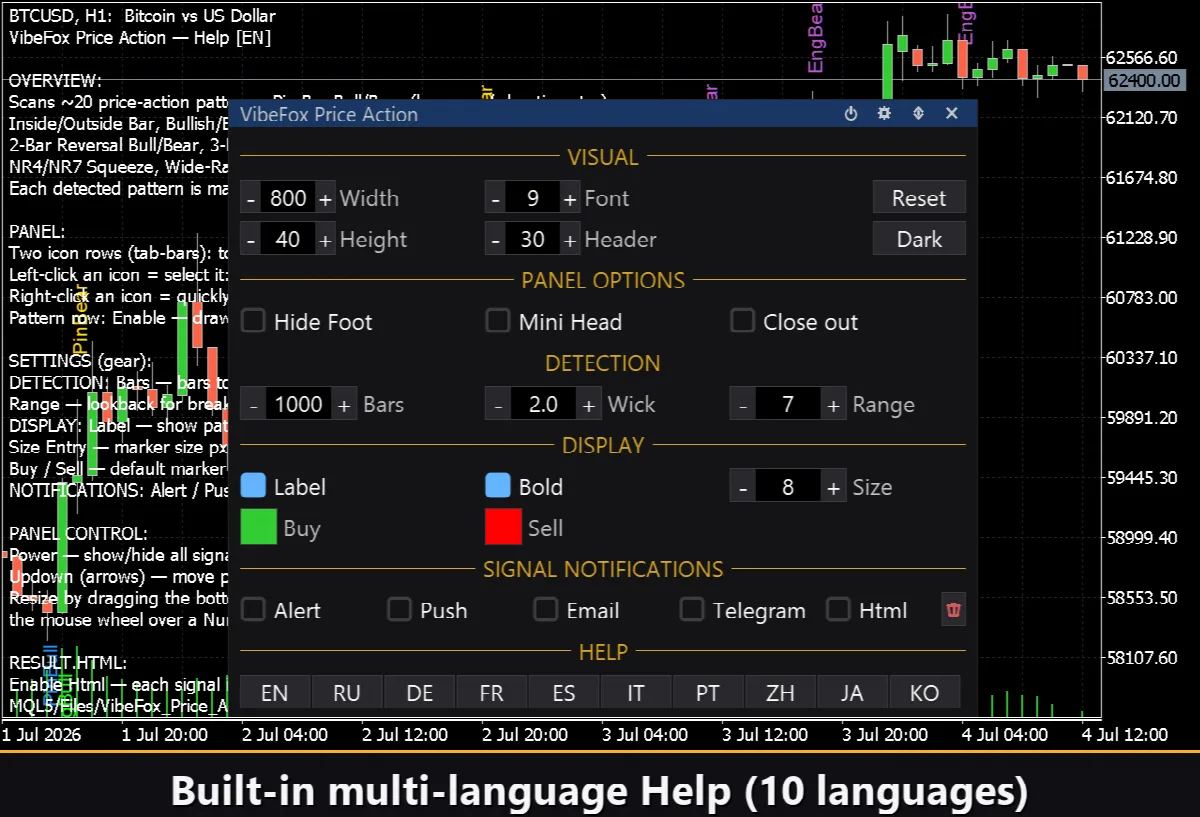
A full help page is built into the panel, available in fourteen languages, so every control is explained right where you use it.